Why Linear FAST Apps Matter
A linear FAST app for Samsung Smart TVs is one of the most interesting opportunities in the connected TV market. FAST stands for Free Ad-Supported Streaming TV. Instead of asking viewers to choose every individual video, a FAST experience gives them a familiar TV-style channel: programming runs continuously, the user opens the app, selects a channel, and watches what is currently playing.
This matters because viewers still love the simplicity of television. They do not always want to search, scroll, decide, and compare. Sometimes they want to press play and relax. That is exactly what a linear FAST app delivers.
Samsung is especially important because its Smart TV ecosystem is massive, and Samsung TV Plus has become one of the most visible FAST services. Samsung says Samsung TV Plus is a free ad-supported service with live channels and on-demand content, and its U.S. Samsung TV Plus page describes access to hundreds of live TV channels and thousands of movies and shows on demand. Samsung also announced in 2026 that Samsung TV Plus had surpassed 100 million monthly active users globally, showing how large the FAST behavior has become on Samsung devices.
But there is an important distinction:
A linear FAST app for Samsung Smart TVs is an app you build and submit through the Samsung Smart TV app ecosystem.
A Samsung TV Plus FAST channel is distribution inside Samsung’s own FAST platform, which is a separate business/content partnership path.
This article focuses on building your own Samsung Smart TV linear FAST-style app using Tizen, HLS playback, schedule metadata, remote-control navigation, advertising logic, testing, and publication through Samsung’s app process.
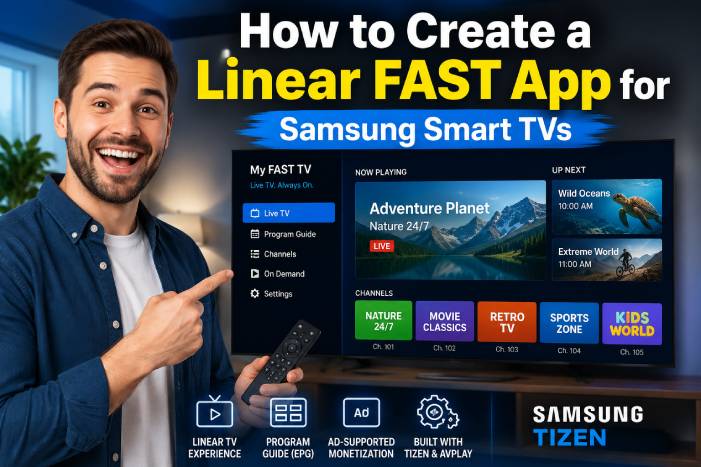
📺 What Is a Linear FAST App?
A linear FAST app is a streaming app that behaves like live television.
Instead of showing only a video-on-demand library, it usually includes:
📡 Live or pseudo-live channels
🗓️ A programming schedule
📺 “Now Playing” and “Up Next” information
▶️ Automatic continuous playback
📢 Ad breaks
🎮 Remote-control navigation
📊 Watch-time analytics
🧭 A channel guide or EPG
💰 Free access supported by advertising
The user experience is simple:
The viewer opens the app, chooses a channel, and starts watching.
A basic example could be:
Channel 1: Classic Movies
Channel 2: Local News
Channel 3: Fitness Classes
Channel 4: Cooking Shows
Channel 5: Music Videos
Channel 6: Kids Education
Channel 7: Faith-Based Programming
Each channel has a schedule. At 8:00 PM, one program plays. At 8:30 PM, another program starts. The app feels like TV, even if the content is delivered over the internet.
🧠 FAST App vs VOD App: The Key Difference
A regular VOD app is based on user choice.
The user selects:
🎬 Movie
📺 Episode
🎓 Lesson
🏋️ Workout
📰 News clip
A linear FAST app is based on schedule and flow.
The user tunes in and watches what is currently airing.
VOD App
A VOD app is better when the user wants control.
Examples:
“Watch episode 3.”
“Start this course.”
“Play this movie.”
“Resume where I stopped.”
Linear FAST App
A linear FAST app is better when the user wants simplicity.
Examples:
“Show me what is on now.”
“Let me watch something without choosing.”
“Give me a TV-like channel.”
“I want a 24/7 experience.”
The strongest streaming businesses often combine both:
✅ Linear FAST channels for discovery and long sessions
✅ VOD library for control and replay
✅ Search and categories for deeper browsing
✅ Ads and sponsorships for monetization
✅ Analytics to improve programming
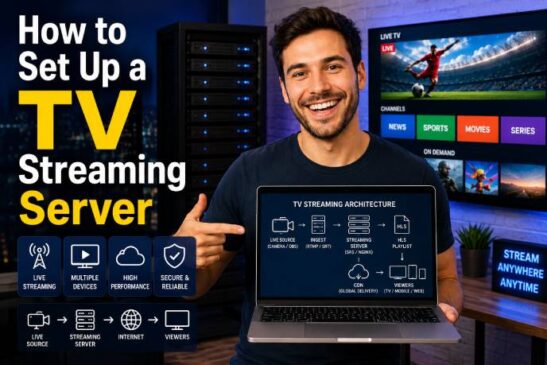
🏗️ The Core Architecture of a Samsung Linear FAST App
A Samsung linear FAST app usually has five major layers.
1. Samsung Tizen App Layer
This is the Smart TV app installed on the Samsung TV. Samsung Smart TV apps are built in the Tizen ecosystem, and Samsung provides Tizen Studio as the official development environment for Tizen web and native apps. Tizen Studio includes tools such as an IDE, emulator, toolchain, sample code, and documentation.
2. Playback Layer
This is responsible for playing the video stream. On Samsung TVs, the Samsung Product AVPlay API provides multimedia player functionality for TV apps. Samsung’s AVPlay documentation states that the AVPlay module defines the multimedia player functionalities provided by the Samsung TV Product API.
3. Streaming Layer
This is where your actual video stream lives. For a linear FAST-style experience, this is commonly an HLS stream, a live stream, or a pseudo-live stream generated from scheduled VOD assets. Samsung’s adaptive streaming documentation explains that AVPlay supports common adaptive streaming engines and lists supported streaming formats for adaptive playback.
4. Metadata and Schedule Layer
This contains your channel list, program guide, thumbnails, titles, descriptions, start times, end times, ratings, categories, and “now playing” data.
5. Monetization Layer
This can include VAST ads, server-side ad insertion, sponsorships, house ads, branded content, or subscription upgrades. IAB Tech Lab defines VAST as a Video Ad Serving Template used to structure ad tags and transfer ad metadata from an ad server to a video player.
🧭 Step 1: Define the FAST App Strategy
Before opening Tizen Studio, define the business.
A FAST app is not just code. It is programming, content, rights, ads, design, analytics, and retention.
Ask these questions first:
🎯 What is the niche?
Good FAST app niches include:
🎬 Classic films
🙏 Faith-based content
🏋️ Fitness and wellness
🍳 Cooking
🎵 Music videos
📰 Local news
🏠 Home and lifestyle
🎓 Education
⚽ Sports highlights
🧒 Kids-safe programming
🌎 Travel documentaries
🐾 Pet content
💼 Business education
The best niche is not always the biggest. The best niche is one where viewers return often and advertisers understand the audience.
📺 How many channels will you launch?
For an MVP, do not launch 50 channels.
Start with:
1 main channel
or
3 focused channels
Example:
Channel 1: Business TV
Channel 2: AI & Technology
Channel 3: Entrepreneurship
Or:
Channel 1: Cooking
Channel 2: Healthy Recipes
Channel 3: Restaurant Stories
A focused app is easier to program, test, monetize, and explain.
💰 What is the monetization model?
A FAST app usually monetizes through advertising, but you can also combine:
📢 Video ads
🤝 Sponsorships
📺 Branded channels
🛒 Lead generation
💳 Premium upgrade
🎟️ Paid special events
📧 Email list building
🎁 Product sales
For many independent apps, sponsorships can be more realistic than programmatic ad revenue at the beginning.
🧾 Step 2: Prepare Content Rights and Metadata
A FAST app lives or dies by content rights.
Before publishing, make sure you have the right to stream every piece of content in every country where the app will be available.
You need to track:
✅ Content title
✅ Video file or stream URL
✅ Thumbnail
✅ Category
✅ Duration
✅ Description
✅ Language
✅ Rating
✅ Territorial rights
✅ Start and end availability
✅ Ad break positions
✅ Closed captions
✅ Music rights
✅ Talent releases, if needed
This is not just legal organization. It also helps your app pass review and operate professionally.
A simple content record could look like this:
{
  "id": "program_001",
  "title": "The Future of Smart TV Apps",
  "description": "A practical guide to the future of connected TV and streaming apps.",
  "duration": 1800,
  "category": "Technology",
  "thumbnail": "https://cdn.example.com/thumbs/program_001.jpg",
  "videoUrl": "https://cdn.example.com/videos/program_001/master.m3u8",
  "rating": "General",
  "language": "en",
  "territories": ["US", "CA", "GB"],
  "adBreaks": [600, 1200]
}
For a real FAST operation, this data should live in a CMS, database, or structured content management system.
🗓️ Step 3: Create the Linear Schedule
The schedule is the heart of a linear app.
A FAST channel needs to know:
What is playing now?
What plays next?
What started before the user opened the app?
Where should playback begin inside the current program?
When does the next program start?
Where should ads appear?
A basic schedule could look like this:
{
  "channelId": "business-tv",
  "timezone": "America/New_York",
  "programs": [
    {
      "programId": "program_001",
      "title": "AI for Small Business",
      "startTime": "2026-01-10T20:00:00-05:00",
      "endTime": "2026-01-10T20:30:00-05:00",
      "videoUrl": "https://cdn.example.com/program_001/master.m3u8"
    },
    {
      "programId": "program_002",
      "title": "How to Build a Streaming App",
      "startTime": "2026-01-10T20:30:00-05:00",
      "endTime": "2026-01-10T21:00:00-05:00",
      "videoUrl": "https://cdn.example.com/program_002/master.m3u8"
    }
  ]
}
For a pseudo-live channel, the app calculates the current time, finds the active program, and starts playback at the correct offset.
Example:
If a 30-minute show started 10 minutes ago, the app should start 10 minutes into the video, not from the beginning.
That is what makes the experience feel like real TV.
📡 Step 4: Choose Live, Pseudo-Live, or Server-Side Linear Streaming
There are three main ways to create a linear FAST experience.
Option 1: True Live Stream
This is a real live stream generated by an encoder.
Use this for:
📡 Live news
🙏 Church services
⚽ Sports events
🎤 Concerts
🎙️ Live shows
The app plays one live HLS URL.
Pros:
✅ Real live experience
✅ Simple playback URL
✅ Good for events
Cons:
❌ Requires live encoding
❌ More operational pressure
❌ Harder scheduling
❌ Mistakes happen in real time
Option 2: Pseudo-Live App Logic
The app uses a schedule and VOD files. It calculates where the viewer should join.
Pros:
✅ Easier to build
✅ Good for MVP
✅ Uses existing VOD assets
✅ Less expensive than full linear playout
Cons:
❌ Ad insertion can be harder
❌ Program transitions require logic
❌ Playback must be carefully synchronized
Option 3: Server-Side Linear Playout
A backend or playout provider creates a continuous HLS channel from your content library.
Pros:
✅ More professional
✅ Better ad insertion support
✅ Cleaner channel behavior
✅ App only plays one channel stream
Cons:
❌ More expensive
❌ Requires more infrastructure
❌ More technical setup
For a first Samsung FAST app MVP, a pseudo-live model can be a smart starting point. For a professional commercial FAST operation, server-side playout usually becomes more attractive.
🛠️ Step 5: Set Up the Samsung Tizen Development Environment
To build a Samsung Smart TV app, you need the Samsung/Tizen development environment.
Samsung’s Tizen Studio is the official IDE for Tizen web and native applications and includes development tools, emulator, sample code, and documentation.
A typical setup includes:
💻 Windows, macOS, or Ubuntu machine
🧰 Tizen Studio
📦 Samsung TV extension packages
📺 Samsung TV emulator
📡 Physical Samsung TV for real testing
🔐 Certificates for signing
🌐 Local development server or packaged app
📁 Web app project structure
Samsung’s Quick-start Guide explains that developers can test during development using TV simulator and emulator tools or an actual Samsung TV. Samsung also provides documentation for testing web applications directly on a TV or target device, including enabling Developer Mode on the TV.
📁 Step 6: Create the Basic Samsung TV App Project
A simple Samsung Tizen web app can be structured like this:
fast-samsung-app/
  config.xml
  index.html
  css/
    app.css
  js/
    app.js
    player.js
    schedule.js
    remote.js
    analytics.js
  assets/
    logo.png
    background.jpg
    default-channel.png
The config.xml file is important. Samsung’s documentation explains that Tizen web application projects must have a config.xml file in the project root directory.
A simplified example:
<?xml version="1.0" encoding="UTF-8"?>
<widget xmlns="http://www.w3.org/ns/widgets"
        xmlns:tizen="http://tizen.org/ns/widgets"
        id="https://example.com/fastapp"
        version="1.0.0"
        viewmodes="maximized">

    <tizen:application id="ExampleFastApp"
                       package="ExampleFastApp"
                       required_version="2.3"/>

    <content src="index.html"/>

    <name>Example FAST TV</name>
    <description>A linear FAST-style streaming app for Samsung Smart TVs.</description>

    <icon src="assets/logo.png"/>

    <tizen:privilege name="http://tizen.org/privilege/internet"/>
</widget>
Your real configuration will depend on the Tizen version, privileges, app requirements, and Samsung packaging rules.
🎮 Step 7: Design for Remote Control Navigation
Samsung TV users navigate with a remote, not a mouse.
That means your app must be designed for focus movement.
You need to handle:
⬆️ Up
⬇️ Down
⬅️ Left
➡️ Right
✅ Enter/OK
↩️ Back/Return
⏯️ Play/Pause
⏩ Fast-forward
⏪ Rewind
🔊 Volume
📺 Channel Up/Down, if supported
Samsung’s remote-control documentation explains that developers can retrieve supported remote keys with getSupportedKeys() and register keys with registerKey().
Example:
function registerRemoteKeys() {
  const keys = [
    "MediaPlayPause",
    "MediaPlay",
    "MediaPause",
    "MediaStop",
    "MediaRewind",
    "MediaFastForward",
    "ChannelUp",
    "ChannelDown"
  ];

  keys.forEach(function(key) {
    try {
      tizen.tvinputdevice.registerKey(key);
    } catch (e) {
      console.log("Could not register key:", key, e);
    }
  });
}

document.addEventListener("keydown", function(event) {
  switch (event.keyCode) {
    case 37:
      moveFocusLeft();
      break;
    case 38:
      moveFocusUp();
      break;
    case 39:
      moveFocusRight();
      break;
    case 40:
      moveFocusDown();
      break;
    case 13:
      selectFocusedItem();
      break;
    case 10009:
      handleBack();
      break;
    default:
      handleMediaKeys(event.keyCode);
      break;
  }
});
On TV, focus bugs are serious. If the user gets trapped in a menu, cannot go back, or loses focus, the app feels broken.
▶️ Step 8: Implement Video Playback with AVPlay
For Samsung TV apps, AVPlay is a key playback API. Samsung’s AVPlay documentation states that to use Samsung Product API, the app should load the Samsung product API script in index.html.
Your index.html can include:
<script type="text/javascript" src="$WEBAPIS/webapis/webapis.js"></script>
<script src="js/player.js"></script>
A simplified AVPlay player flow:
const Player = {
  videoUrl: null,

  init: function() {
    console.log("Player initialized");
  },

  play: function(url, startSeconds = 0) {
    this.videoUrl = url;

    try {
      webapis.avplay.close();
    } catch (e) {
      console.log("No previous player session to close");
    }

    try {
      webapis.avplay.open(url);

      webapis.avplay.setDisplayRect(0, 0, 1920, 1080);

      webapis.avplay.setListener({
        onbufferingstart: function() {
          showLoading();
        },
        onbufferingcomplete: function() {
          hideLoading();
        },
        onstreamcompleted: function() {
          Schedule.playNextProgram();
        },
        onerror: function(error) {
          showPlaybackError(error);
        }
      });

      webapis.avplay.prepareAsync(function() {
        if (startSeconds > 0) {
          webapis.avplay.seekTo(startSeconds * 1000);
        }

        webapis.avplay.play();
      }, function(error) {
        showPlaybackError(error);
      });

    } catch (e) {
      showPlaybackError(e);
    }
  },

  pause: function() {
    webapis.avplay.pause();
  },

  resume: function() {
    webapis.avplay.play();
  },

  stop: function() {
    webapis.avplay.stop();
  }
};
Samsung’s “Playback Using AVPlay” guide describes AVPlay features such as jumping to a specific time in media, adjusting playback rate, and switching audio tracks.
For a linear pseudo-live experience, the most important feature is the ability to start playback at the correct offset.
🕒 Step 9: Calculate “Now Playing” and Start Offset
The schedule engine determines what should be playing right now.
Example logic:
const Schedule = {
  programs: [],

  load: async function() {
    const response = await fetch("https://api.example.com/channels/business-tv/schedule");
    const data = await response.json();
    this.programs = data.programs;
  },

  getCurrentProgram: function() {
    const now = new Date();

    return this.programs.find(function(program) {
      const start = new Date(program.startTime);
      const end = new Date(program.endTime);

      return now >= start && now < end;
    });
  },

  getStartOffsetSeconds: function(program) {
    const now = new Date();
    const start = new Date(program.startTime);

    return Math.floor((now.getTime() - start.getTime()) / 1000);
  },

  playCurrentProgram: function() {
    const program = this.getCurrentProgram();

    if (!program) {
      showNoProgramMessage();
      return;
    }

    const offset = this.getStartOffsetSeconds(program);

    updateNowPlaying(program);
    Player.play(program.videoUrl, offset);
  },

  playNextProgram: function() {
    const current = this.getCurrentProgram();

    if (!current) {
      this.playCurrentProgram();
      return;
    }

    const currentIndex = this.programs.findIndex(p => p.programId === current.programId);
    const nextProgram = this.programs[currentIndex + 1];

    if (nextProgram) {
      updateNowPlaying(nextProgram);
      Player.play(nextProgram.videoUrl, 0);
    } else {
      this.playCurrentProgram();
    }
  }
};
This is the simplest version. In production, you must handle time zones, clock drift, missing programs, regional schedules, daylight saving time, API outages, and fallback programming.
🧭 Step 10: Build a Simple EPG / Channel Guide
A linear app becomes much stronger when it has an EPG, or electronic program guide.
The EPG should show:
📺 Channel name
▶️ Current program
⏭️ Next program
🕒 Start and end time
📝 Description
🎬 Thumbnail
🔴 Live indicator
📅 Schedule rows
A simple guide layout:
----------------------------------------------------
CHANNEL       NOW PLAYING              UP NEXT
----------------------------------------------------
Business TV   AI for Small Business     Smart TV Apps
Fitness TV    Morning Cardio            Yoga Flow
Food TV       Quick Recipes             Italian Dinner
----------------------------------------------------
On TV, avoid dense grids at first. A simple “Now / Next” guide may be better than a complex cable-style guide.
For MVP:
✅ Channel list on the left
✅ Video playing in background
✅ Now playing card
✅ Up next card
✅ Press OK to switch channel
✅ Press Back to hide guide
📢 Step 11: Plan Advertising and Ad Breaks
FAST monetization depends heavily on ad strategy.
There are two common approaches:
Client-Side Ad Insertion
The app pauses content and requests an ad.
Pros:
✅ Easier for prototypes
✅ Flexible logic
✅ Can use VAST tags
Cons:
❌ More playback interruptions
❌ Harder on TV devices
❌ Ad blockers/failures may happen
❌ Transitions can feel rough
Server-Side Ad Insertion
The stream provider stitches ads into the stream before delivery.
Pros:
✅ Smoother TV experience
✅ Better for linear channels
✅ More professional
✅ Common in FAST workflows
Cons:
❌ More complex
❌ Requires ad-tech infrastructure
❌ Needs careful measurement
For serious FAST apps, server-side ad insertion is often the better long-term path. For an MVP, you can begin with sponsorships, house ads, or scheduled breaks before integrating a full ad stack.
VAST is important because it is a common standard for video ad serving. IAB Tech Lab describes VAST as a template that structures ad tags and transfers ad metadata from an ad server to a video player.
📊 Step 12: Add Analytics from Day One
Do not wait until after launch to add analytics.
Track:
📈 App launches
📈 Channel starts
📈 Watch time
📈 Program completion
📈 Buffering events
📈 Playback errors
📈 Ad impressions
📈 Ad errors
📈 Remote key behavior
📈 Channel switches
📈 Returning users
📈 Session duration
For a FAST app, watch time is one of the most important metrics.
If viewers open the app and leave after 30 seconds, the programming is not working.
If viewers stay for 20, 30, or 60 minutes, you have something valuable.
🧪 Step 13: Test on Emulator and Real Samsung TVs
Testing only in the emulator is not enough.
Samsung’s Quick-start Guide notes that developers can test applications with simulator and emulator tools or an actual Samsung TV. Samsung also provides instructions for testing web applications on a TV or target device.
Test these situations:
✅ App cold start
✅ Slow network
✅ Stream unavailable
✅ Schedule API unavailable
✅ Missing thumbnail
✅ Empty channel list
✅ Program transition
✅ App resume after sleep
✅ Back button behavior
✅ Remote focus navigation
✅ Channel switching
✅ Long playback session
✅ Ad break failure
✅ HLS stream variant changes
✅ Older Samsung TV models
✅ Different screen resolutions
A FAST app must feel reliable. Viewers expect TV to “just work.”
📦 Step 14: Prepare for Samsung App Submission
Samsung Apps TV Seller Office is the official system for Smart TV application certification and management. Samsung’s application publication documentation explains that after development, applications are registered and published through the Samsung Apps TV Seller Office.
Before submission, prepare:
📌 App package
📌 App icon
📌 Screenshots
📌 Description
📌 Category
📌 Supported countries
📌 Privacy policy
📌 Terms of use
📌 Test account, if needed
📌 Test instructions
📌 Content rights confirmation
📌 Streaming test URLs
📌 Support email
📌 Age rating information
📌 Remote-control behavior
📌 Error handling
📌 Self-checklist review
Samsung’s certification FAQ says certification and publication time depends on tester availability and how many rounds are needed to resolve defects, and it recommends comprehensive testing before submission to reduce defects. Samsung also provides a launch checklist intended to help avoid unnecessary delays during testing and release.
🧱 Recommended MVP Feature Set
For your first version, avoid overbuilding.
A strong MVP can include:
✅ Splash screen
✅ Home screen
✅ One to three linear channels
✅ HLS playback
✅ Now Playing
✅ Up Next
✅ Basic schedule API
✅ Remote navigation
✅ Loading indicator
✅ Error screen
✅ Basic analytics
✅ Privacy policy
✅ App settings page
✅ Support information
Do not start with:
❌ Complex user accounts
❌ Too many channels
❌ Advanced personalization
❌ Heavy animations
❌ Complicated EPG
❌ Unproven ad tech
❌ Too many categories
❌ Overloaded home screen
The first goal is simple:
Make the app open fast, play reliably, and keep people watching.
💰 Monetization Models for a Samsung Linear FAST App
A linear FAST app can be monetized in several ways.
1. Programmatic Video Ads
This is the classic FAST model.
The user watches free content. Ads pay for the app.
Best when you have:
📊 Significant watch time
🌎 Valuable audience geography
🎯 Brand-safe content
📺 Professional stream quality
🔁 Repeat users
🧾 Good measurement
2. Direct Sponsorships
For smaller apps, sponsorships may be better than programmatic ads.
Example:
“This channel is presented by…”
“Tonight’s programming is sponsored by…”
“Local business spotlight…”
Direct sponsorship works well for:
🏙️ Local media
🙏 Faith content
⚽ Local sports
🏠 Real estate
🍳 Food and lifestyle
🎓 Education
🐾 Pet content
3. Branded Channels
A business can sponsor or own a channel.
Example:
A fitness brand launches a 24/7 wellness channel.
A real estate company launches a luxury home channel.
A church launches a teaching channel.
A school launches an educational channel.
4. Lead Generation
Sometimes the app does not need to generate all revenue inside the player.
It can generate leads for:
📚 Courses
🏋️ Coaching
🏠 Real estate inquiries
🙏 Donations
💼 Consulting
🎟️ Events
🛍️ Products
A Smart TV app can become a powerful top-of-funnel channel.
5. Hybrid FAST + Premium
You can offer free linear channels and premium access.
Example:
Free:
📺 Linear channel
📢 Ads
🎬 Limited archive
Premium:
💳 Full VOD library
🚫 Ad-free viewing
🎓 Courses
🎟️ Events
📥 Bonus content
This model works well when the free linear channel builds trust and habit.
🎨 UX Principles for a Samsung FAST App
TV UX must be simple.
Use these rules:
Make Text Large
People sit far from the screen. Tiny text fails.
Use Clear Focus States
The user must always know what is selected.
Reduce Typing
Typing on TV is slow. Avoid forcing login too early.
Prioritize Playback
The app exists to play video. Do not bury the player.
Keep Navigation Predictable
Up, down, left, right, OK, back. Nothing confusing.
Use “Now Playing” Everywhere
The viewer should always know what channel and program they are watching.
Make Errors Human
Do not show raw technical errors.
Bad:
PLAYER_ERROR_CODE_9083
Better:
“We’re having trouble playing this channel. Please try again in a moment.”
⚠️ Common Mistakes to Avoid
Mistake 1: Treating FAST Like a Playlist
A FAST channel is not just a playlist. It needs schedule logic, metadata, transitions, and programming strategy.
Mistake 2: Ignoring Time Zones
If your app is available in multiple regions, time zones matter.
Mistake 3: Starting With Too Many Channels
More channels create more programming work. Start focused.
Mistake 4: Using Weak Hosting
Bad streaming infrastructure causes buffering, and buffering kills TV engagement.
Mistake 5: Forgetting Remote Control UX
A mouse-friendly web app is not automatically a TV-friendly app.
Mistake 6: No Fallback Content
If the schedule fails, the app needs a fallback program or channel.
Mistake 7: Poor Thumbnails
TV is visual. Bad artwork makes the app feel cheap.
Mistake 8: No Analytics
Without watch-time data, you cannot improve programming or monetization.
✅ Final Launch Checklist
Before submitting your Samsung FAST app, verify:
✅ App opens quickly
✅ Video starts reliably
✅ HLS stream works
✅ Remote control navigation works
✅ Back button works
✅ Focus never disappears
✅ Schedule API works
✅ Now Playing is accurate
✅ Up Next is accurate
✅ Channel switching works
✅ App handles stream errors
✅ App handles API failures
✅ App has privacy policy
✅ App has support email
✅ Content rights are clear
✅ Store screenshots are ready
✅ App icon is polished
✅ Testing was done on real device
✅ App follows Seller Office requirements
✅ Monetization does not break playback
Samsung’s TV Seller Office is the official place for certification and management, so the app should be prepared carefully before submission.
🏁 A Samsung FAST App Is a Media Business, Not Just an App
Creating a linear FAST app for Samsung Smart TVs in 2026 is a serious opportunity, but it requires more than building a video player.
You need:
📺 A clear programming strategy
📡 Reliable HLS streaming
🧠 Schedule logic
🎮 Remote-control UX
📢 Monetization planning
📊 Analytics
🧪 Real-device testing
📦 Samsung Seller Office preparation
🎨 Strong TV design
💼 A real business model
The most important mindset is this:
A Samsung FAST app is not just software.
It is a television experience.
If you build it correctly, your app can turn a content library into a 24/7 channel, create new advertising inventory, support sponsorships, increase watch time, and give your brand a real presence inside the living room.
The best first version does not need to be huge. It needs to be stable, focused, and watchable.
Start with one strong channel. Build a clean schedule. Use reliable HLS playback. Make remote navigation perfect. Track watch time. Improve programming. Then expand.
That is how a simple Samsung Smart TV app can grow into a real FAST-style streaming business.