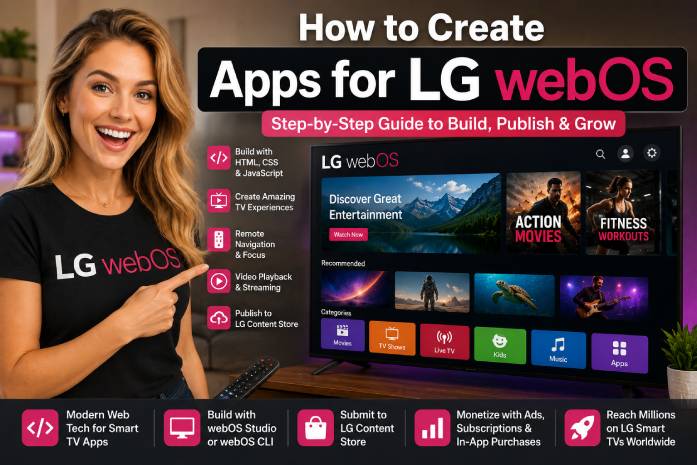
🚀 Why LG webOS App Development Matters
Creating apps for LG webOS is one of the most interesting opportunities in the Smart TV and connected TV market. While mobile apps are built for phones and websites are built for browsers, LG webOS apps are built for the living room: a large screen, a remote control, and a viewer who expects a simple, smooth, TV-first experience.
For developers, LG webOS is attractive because it is based on familiar web technologies. LG’s official developer documentation explains that webOS TV web apps are built with standards-based technologies such as HTML, CSS, and JavaScript, and that if you already have experience building web apps, you can start developing for webOS TV more easily.
That is a major advantage.
You do not need to start from zero with an unfamiliar native language. You can use your web development knowledge and adapt it to the television environment.
But there is an important warning: an LG webOS app is not simply a website placed on a TV screen.
A good LG Smart TV app must be designed for:
📺 large screens,
🎮 remote-control navigation,
▶️ reliable video playback,
⚡ fast loading,
🧭 simple menus,
🖼️ strong visual thumbnails,
📊 analytics,
💰 monetization,
🧪 testing on real TVs,
📦 packaging and submission.
This guide explains how to create LG webOS apps step by step, from the first project structure to testing, publishing, and monetization.
📺 What Is an LG webOS App?
An LG webOS app is an application designed to run on LG Smart TVs powered by webOS.
It can be used for many types of experiences:
🎬 video streaming apps,
📡 live TV apps,
📺 FAST-style channels,
🏋️ fitness apps,
🎓 education apps,
🙏 faith-based apps,
🎵 music apps,
📰 local news apps,
🛒 commerce experiences,
🎮 simple TV games,
💼 business training apps.
The most common type of webOS app is a media or streaming app, because the TV is naturally a video-first device. However, webOS apps can also support interactive experiences, dashboards, lightweight games, educational content, and branded applications.
A professional LG webOS app usually includes:
✅ home screen,
✅ content categories,
✅ video player,
✅ remote navigation,
✅ search or filtering,
✅ settings page,
✅ content feed or API,
✅ analytics,
✅ error handling,
✅ app metadata,
✅ packaging file,
✅ store assets.
🧠 LG webOS App vs Website: The Big Difference
Because webOS uses HTML, CSS, and JavaScript, many developers make one early mistake: they think an LG webOS app is just a regular website.
It is not.
A normal website is built for:
🖱️ mouse,
⌨️ keyboard,
📱 touch,
🧭 scrolling,
🔎 frequent text input.
A TV app is built for:
🎮 directional remote control,
📺 large screen viewing,
🛋️ couch distance,
⬆️⬇️⬅️➡️ focus movement,
▶️ video-first usage,
⏱️ longer sessions,
🔙 predictable Back button behavior.
On the web, users can click anywhere. On TV, users move from one focused element to another. That means your interface needs a clear focus system.
If the user presses Right, the app must know where to go.
If the user presses Back, the app must know whether to close a menu, return to the previous screen, or exit the app.
LG’s Back button guidance says the Back button on the Magic Remote should help users navigate back easily, and the app should either move to the previous page or, if the current page is the entry page, handle app exit behavior depending on the webOS version.
That detail matters because on TV, navigation mistakes feel much worse than on desktop.
🏗️ The Basic Architecture of an LG webOS App
A strong LG webOS app usually has six layers.
1. Frontend Layer
This is the app interface built with:
HTML,
CSS,
JavaScript,
optionally React, Vue, Svelte, Enact, or another framework.
For a simple app, plain HTML/CSS/JS can be enough.
For a more complex app, a modern JavaScript framework may help.
2. TV Navigation Layer
This handles:
remote key events,
focus movement,
Back button behavior,
menu navigation,
player controls,
keyboard avoidance.
3. Content Layer
This provides app data:
categories,
video titles,
descriptions,
thumbnails,
stream URLs,
durations,
tags,
ratings,
availability rules.
This data usually comes from a JSON API, CMS, WordPress REST API, custom backend, or streaming platform.
4. Playback Layer
This manages video playback:
HLS,
DASH,
MP4,
live streams,
subtitles,
DRM,
resume behavior,
buffering states.
LG’s platform specifications section includes streaming protocol and DRM references for checking supported media and DRM formats on webOS TV.
5. Native webOS Layer
This includes webOS-specific features:
webOSTV.js,
app lifecycle,
device information,
TV-specific APIs,
service calls,
system events.
LG describes webOSTV.js as a portable library that gives webOS TV apps access to TV-specific features and functionality.
6. Distribution Layer
This includes:
packaging,
IPK creation,
testing,
LG Seller Lounge submission,
QA,
approval,
release.
LG’s app approval process explains that apps are submitted to LG Seller Lounge, and submission requires information and documents such as UX scenario and self-checklist. LG then performs QA testing, and rejected apps must be fixed and resubmitted.
🎯 Step 1: Choose the Type of LG webOS App You Want to Build
Before writing code, define the app’s purpose.
📺 Video Streaming App
This is the most common path.
Examples:
movies,
series,
courses,
church services,
fitness videos,
interviews,
music videos,
documentaries.
📡 Live TV App
A live app plays one or more live streams.
Examples:
news,
sports,
events,
religious services,
music channels.
📺 FAST-Style App
A FAST-style app creates a linear TV experience with scheduled programming and ad-supported content.
Examples:
24/7 movie channel,
local news channel,
fitness channel,
faith channel,
music channel.
🎓 Education App
An education app can include courses, lessons, playlists, tutorials, and training content.
🛒 Brand or Business App
A business app can promote products, services, real estate, events, portfolios, or branded video libraries.
🎮 Simple Game or Interactive App
webOS can support interactive experiences, but TV games should be simple and remote-friendly.
The most important question is:
Why would someone want this app on a TV instead of only on a phone or website?
If the large screen improves the experience, the idea may be strong.
🛠️ Step 2: Set Up the LG webOS Development Tools
To build LG webOS apps, you need the correct tools.
LG’s SDK documentation says webOS TV provides tools such as webOS CLI, webOS Studio, webOS TV Simulator, and Beanviser to support app development. It also notes that in 2024, webOS TV CLI was upgraded to webOS CLI, and the old webOS TV CLI and old VS Code extension were deprecated.
The main tools are:
🧰 webOS CLI
The webOS CLI lets you create, package, install, launch, and debug apps from the command line. LG’s CLI Developer Guide explains that the CLI development process includes creation, packaging, installation, launching, and debugging.
🧩 webOS Studio
webOS Studio is useful for developers who prefer working inside Visual Studio Code. LG’s webOS Studio guide describes the app installation flow as packaging the source code into an .ipk file, installing the IPK, and launching the installed app.
📺 webOS TV Simulator
The webOS TV Simulator allows you to test and debug apps without always needing a real TV. LG’s developer site says the simulator works with webOS CLI and webOS Studio and supports the remote-control unit.
📡 Real LG TV
The simulator is useful, but a real TV is essential.
You need to test:
remote navigation,
video playback,
performance,
focus behavior,
memory usage,
startup time,
network errors,
older model compatibility.
A TV app that works on your desktop may still fail on a real Smart TV.
📁 Step 3: Create the Basic Project Structure
A simple LG webOS app can look like this:
lg-webos-app/
  appinfo.json
  index.html
  css/
    app.css
  js/
    app.js
    navigation.js
    player.js
    api.js
    analytics.js
  assets/
    icon.png
    splash.png
    logo.png
    placeholder.jpg
The core files are:
appinfo.json — app metadata
index.html — main entry point
app.css — TV-friendly visual style
app.js — app initialization
navigation.js — remote-control focus behavior
player.js — video playback logic
api.js — content feed requests
analytics.js — tracking events
assets/ — images, icons, splash screen, placeholders
For a simple MVP, this structure is enough.
For a larger app, you may separate screens, services, components, state management, and player modules more carefully.
🧾 Step 4: Understand appinfo.json
The appinfo.json file is one of the most important files in a webOS app. It contains metadata used by the platform.
A simplified example:
{
  "id": "com.example.mywebosapp",
  "version": "1.0.0",
  "vendor": "Example Company",
  "type": "web",
  "main": "index.html",
  "title": "My webOS App",
  "icon": "assets/icon.png",
  "largeIcon": "assets/icon.png"
}
For real projects, your appinfo.json may include additional properties depending on the app features.
LG’s app lifecycle documentation notes that appinfo.json contains app metadata and can include properties such as handlesRelaunch, which defines whether the app handles a webOSRelaunch event itself.
That means appinfo.json is not just a label file. It affects how the app behaves.
🎨 Step 5: Build a TV-Friendly Home Screen
The home screen is the first impression.
A strong LG webOS home screen should include:
📌 app logo,
🎬 featured content,
📺 content rows,
📁 categories,
▶️ continue watching,
🔴 live button if applicable,
⚙️ settings,
🔍 search if needed.
A simple structure:
------------------------------------------------
LOGO
------------------------------------------------
Featured Content
[Large Hero Banner]
------------------------------------------------
Continue Watching
[Video] [Video] [Video]
------------------------------------------------
Popular
[Video] [Video] [Video]
------------------------------------------------
Categories
[Movies] [Live] [Courses] [Kids] [Music]
------------------------------------------------
TV design principles:
✅ use large text,
✅ avoid small buttons,
✅ use high-contrast focus states,
✅ keep rows simple,
✅ reduce typing,
✅ avoid dense menus,
✅ make thumbnails beautiful,
✅ make the selected item obvious.
A TV user should never wonder: “Where am I on the screen?”
🎮 Step 6: Handle Remote Control Navigation
Remote navigation is one of the most important parts of LG webOS development.
A basic key handler might look like this:
document.addEventListener("keydown", function(event) {
  switch (event.keyCode) {
    case 37:
      moveFocusLeft();
      break;
    case 38:
      moveFocusUp();
      break;
    case 39:
      moveFocusRight();
      break;
    case 40:
      moveFocusDown();
      break;
    case 13:
      selectFocusedItem();
      break;
    case 461:
      handleBackButton();
      break;
    default:
      console.log("Unhandled key:", event.keyCode);
  }
});
Your focus system needs to know:
which element is selected,
where focus moves next,
what happens on OK,
what happens on Back,
what happens when a menu opens,
what happens when video playback starts,
what happens when an overlay closes.
The Back button deserves special care because LG’s guidance expects apps to navigate naturally and handle exit behavior correctly based on the app state and platform version.
▶️ Step 7: Add Video Playback
For many LG webOS apps, video playback is the core product.
A simple HTML video element might look like this:
<video id="videoPlayer" width="1920" height="1080" controls>
  <source src="https://example.com/video/master.m3u8" type="application/x-mpegURL">
</video>
But production playback is usually more complex.
You need to handle:
buffering,
errors,
autoplay behavior,
HLS or DASH support,
subtitles,
audio tracks,
DRM,
resume playback,
network changes,
player state,
analytics events.
LG’s mediaOption documentation explains that the mediaOption parameter is a web app-level expansion interface that works with the Media Pipeline and can forward playback-related data to the Media Player.
LG’s mediaOption reference also describes media transport types and says HLS playback is associated with HLS protocol and MIME/file extension behavior such as .m3u8.
For a professional streaming app, do not only ask, “Does the video play?”
Ask:
Does it start fast?
Does it recover from buffering?
Does it fail gracefully?
Does it resume correctly?
Does it work on real LG TVs?
Does it support the formats required by the business?
Does it support subtitles or DRM when needed?
🔐 Step 8: Plan DRM If You Have Premium Content
If your app offers premium movies, paid courses, subscription content, or licensed content, you may need DRM.
LG’s DRM documentation says webOS TV provides a DRM Service to support DRM content playback and specifically lists PlayReady as a supported DRM type.
DRM is not always required.
You may not need DRM for:
free videos,
your own public content,
simple promotional content,
open educational content.
You may need DRM for:
licensed movies,
premium video libraries,
subscription content,
paid courses,
studio-controlled content,
contractual content protection.
DRM should be planned early because it affects video hosting, player choice, licensing, testing, and certification.
📦 Step 9: Load Content From a JSON Feed or API
A real LG webOS app should not hardcode every video into the app.
Instead, create a content feed.
Example:
{
  "categories": [
    {
      "id": "featured",
      "title": "Featured",
      "items": [
        {
          "id": "video-001",
          "title": "How to Build a Smart TV App",
          "description": "A practical guide to creating apps for connected TVs.",
          "thumbnail": "https://cdn.example.com/thumbs/video-001.jpg",
          "videoUrl": "https://cdn.example.com/videos/video-001/master.m3u8",
          "duration": 1800
        }
      ]
    }
  ]
}
Your app can fetch this feed:
async function loadContent() {
  try {
    const response = await fetch("https://api.example.com/webos-feed.json");
    const data = await response.json();
    renderHomeScreen(data.categories);
  } catch (error) {
    showErrorScreen("We could not load the content. Please try again.");
  }
}
A good content feed should include:
✅ title,
✅ description,
✅ thumbnail,
✅ stream URL,
✅ category,
✅ duration,
✅ rating,
✅ language,
✅ availability,
✅ subtitles,
✅ DRM data if needed,
✅ ad rules if needed.
This makes the app scalable. You can update the library from your backend without submitting a new app version every time.
💰 Step 10: Choose a Monetization Model
An LG webOS app can make money in several ways.
📢 AVOD — Free With Ads
Users watch for free, and revenue comes from advertising.
Best for:
movies,
shows,
news,
music,
faith content,
kids-safe content,
general entertainment.
💳 SVOD — Subscription
Users pay monthly or yearly.
Best for:
fitness,
education,
premium content,
courses,
exclusive communities,
professional training.
🎟️ TVOD — Paid Events or Rentals
Users pay for specific content.
Best for:
live events,
courses,
performances,
sports events,
premium films.
🤝 Sponsorship
A sponsor pays to appear in or around the app.
Best for:
local channels,
niche communities,
faith apps,
sports apps,
education apps.
🧲 Lead Generation
The app generates leads for another business.
Examples:
real estate inquiries,
course sales,
consulting calls,
donations,
memberships,
e‑commerce purchases.
🛒 In-App Purchase
LG’s In-App Purchase documentation says that to provide paid products or content in a VOD or game app, In-App Purchase is required, and a billing system or service is needed to complete transactions requested inside the app.
If you plan to sell content inside the app, study the platform requirements early.
🧪 Step 11: Test With Simulator and Real Devices
Testing is where many TV apps fail.
The simulator helps a lot because LG says webOS TV Simulator can test and debug apps without a real TV and supports remote control interaction.
But you should still test on real devices.
Test these cases:
✅ app launch,
✅ splash screen,
✅ home screen loading,
✅ remote navigation,
✅ Back button,
✅ video start,
✅ video pause/resume,
✅ buffering,
✅ broken video URL,
✅ API failure,
✅ missing thumbnail,
✅ empty category,
✅ long playback session,
✅ low internet speed,
✅ old TV model,
✅ app relaunch,
✅ memory usage,
✅ subtitles,
✅ DRM if used,
✅ account login if used.
A Smart TV app must feel reliable. Viewers expect TV to work immediately.
⚡ Step 12: Optimize Performance
TV hardware is not the same as a modern desktop computer.
You need to optimize:
image sizes,
JavaScript bundle size,
CSS complexity,
animations,
DOM size,
API requests,
video startup,
memory usage.
Practical performance tips:
✅ compress thumbnails,
✅ lazy-load rows,
✅ cache API responses,
✅ avoid heavy animations,
✅ remove unused libraries,
✅ use placeholders while loading,
✅ limit simultaneous network requests,
✅ test on older models,
✅ avoid huge DOM trees,
✅ keep the UI simple.
A fast app feels professional.
A slow app feels broken.
🌍 Step 13: Add Localization If You Want Multiple Languages
If your app targets multiple countries, localization matters.
LG’s app localization documentation says that to localize an app into more than one language, developers need additional appinfo.json files for each language, and localized app files must keep the same app ID and version as the top-level appinfo.json because failed validation prevents packaging or upload.
For international apps, prepare:
English title,
Portuguese title,
Spanish title,
localized descriptions,
localized thumbnails,
translated categories,
regional content rights,
country-specific pricing,
country-specific privacy information.
Localization is more than translation. It is adapting the app experience to the market.
📲 Step 14: Use webOSTV.js for TV-Specific Features
For basic apps, HTML/CSS/JS may be enough.
For deeper platform integration, use webOSTV.js.
LG describes webOSTV.js as a library that provides APIs for webOS TV apps to access TV-specific features and functionality.
LG’s JS service usage guide explains that developers can download and extract the webOSTV.js file, copy it into the app directory, and insert a script tag in the main app file such as index.html.
Example:
<script type="text/javascript" src="webOSTVjs-1.2.4/webOSTV.js"></script>Use webOS-specific APIs only when needed. Keep the app clean, portable, and easy to maintain.
📦 Step 15: Package, Install, and Launch the App
When your app is ready for testing, you package it into an .ipk file.
LG’s webOS Studio guide describes the typical process as:
- package source code into an
.ipkfile, - install the IPK file,
- launch the installed app.
This process can be done through webOS Studio or CLI workflows.
The development loop usually looks like this:
write code,
package app,
install on simulator or TV,
launch app,
test,
debug,
fix,
repeat.
Do not wait until the end to test on TV. Test early and often.
🏬 Step 16: Prepare for LG Seller Lounge Submission
Publishing is not just uploading a file.
LG’s approval process says apps are submitted through LG Seller Lounge and that LG performs QA testing; if the app fails, it is rejected with issues to fix and must be resubmitted.
Before submission, prepare:
📌 app package,
📌 app name,
📌 description,
📌 icons,
📌 screenshots,
📌 supported countries,
📌 supported languages,
📌 privacy policy,
📌 terms of use,
📌 UX scenario document,
📌 self-checklist,
📌 test credentials if login exists,
📌 streaming test URLs,
📌 content rights confirmation,
📌 support contact.
Your app should be polished before submission.
A rejected app costs time.
🧩 Recommended MVP for Your First LG webOS App
For your first version, keep the app focused.
A strong MVP can include:
✅ splash screen,
✅ home screen,
✅ 3 to 5 categories,
✅ content feed,
✅ video detail page,
✅ HLS playback,
✅ remote navigation,
✅ Back button handling,
✅ loading states,
✅ error screens,
✅ basic analytics,
✅ privacy policy,
✅ store assets.
Avoid starting with:
❌ too many screens,
❌ complex login,
❌ heavy animations,
❌ too many categories,
❌ advanced personalization,
❌ untested ad tech,
❌ complicated payment flow,
❌ huge content architecture.
The first goal is not to build everything.
The first goal is to build a stable, watchable, TV-friendly app.
🏆 Best LG webOS App Ideas in 2026
🎬 Niche Streaming App
A curated video app for a specific audience can work well.
Examples:
classic films,
documentaries,
local content,
music videos,
faith-based content.
🏋️ Fitness App
Fitness content works well on TV because users want to follow workouts on a large screen.
🎓 Education App
Courses, tutorials, language learning, and professional training can become valuable TV experiences.
🙏 Faith-Based App
Churches, ministries, and spiritual communities can use LG webOS apps for sermons, live services, music, and teachings.
📰 Local News App
Local news and community programming can build loyalty.
🏠 Real Estate App
Real estate video tours look strong on TV. Luxury property content can be especially visual.
💼 Business Training App
Business, marketing, entrepreneurship, software tutorials, and professional education can work for long-form viewing.
⚠️ Common Mistakes to Avoid
Mistake 1: Treating the App Like a Website
A TV app needs focus navigation, large text, and simple layouts.
Mistake 2: Ignoring the Back Button
Back behavior must be predictable and platform-friendly.
Mistake 3: Using Poor Video Hosting
Buffering ruins the experience.
Mistake 4: Not Testing on Real TVs
Simulator testing is helpful, but real device testing is essential.
Mistake 5: Weak Thumbnails
TV is visual. Bad thumbnails reduce video starts.
Mistake 6: Overloading the Home Screen
Too many rows and buttons make the app feel confusing.
Mistake 7: No Error Handling
Streams fail. APIs fail. Images fail. The app must handle failure gracefully.
Mistake 8: No Monetization Plan
Choose the business model before building too much.
✅ Final LG webOS App Launch Checklist
Before submitting your app, check:
✅ app opens correctly,
✅ home screen loads fast,
✅ remote navigation works,
✅ focus state is visible,
✅ Back button behaves correctly,
✅ video playback works,
✅ streams are stable,
✅ subtitles work if needed,
✅ DRM works if needed,
✅ API failures are handled,
✅ loading states are clear,
✅ error messages are human-friendly,
✅ app metadata is correct,
✅ icons are polished,
✅ screenshots are ready,
✅ privacy policy is available,
✅ test account is prepared if needed,
✅ app is tested on real LG TV,
✅ app package is ready,
✅ Seller Lounge materials are complete.
🔮 The Future of LG webOS Apps
LG webOS apps are becoming more than simple video players.
The next generation of Smart TV apps will include:
🤖 AI-powered recommendations,
📺 live and on-demand hybrid experiences,
🛒 shoppable TV,
📊 personalized content rows,
🎯 better advertising,
🌍 multilingual apps,
🧠 smarter metadata,
📡 FAST-style channels,
📱 mobile-to-TV pairing,
💳 subscriptions and premium content.
For developers, this creates opportunity.
For content owners, it creates distribution.
For entrepreneurs, it creates a new way to build a media business directly inside the living room.
✅ LG webOS Is a Practical Platform for Smart TV Apps
Learning how to create apps for LG webOS is a valuable skill for developers, agencies, content owners, media companies, churches, educators, fitness brands, and streaming entrepreneurs.
The development path is clear:
- Choose a strong app idea.
- Define the business model.
- Set up webOS CLI or webOS Studio.
- Build with HTML, CSS, and JavaScript.
- Design for the TV screen.
- Add remote-control navigation.
- Implement video playback.
- Load content from an API or feed.
- Test on simulator and real TVs.
- Package the app as an IPK.
- Prepare Seller Lounge submission.
- Improve based on analytics and user behavior.
The biggest advantage of LG webOS is that it gives web developers a familiar entry point into Smart TV development. But the biggest challenge is remembering that TV is not desktop web.
A successful LG webOS app must be simple, fast, visual, stable, and easy to navigate.
If you build with that mindset, LG webOS can become much more than another app platform.
It can become a serious distribution channel for your content, your brand, your streaming business, or your digital product.