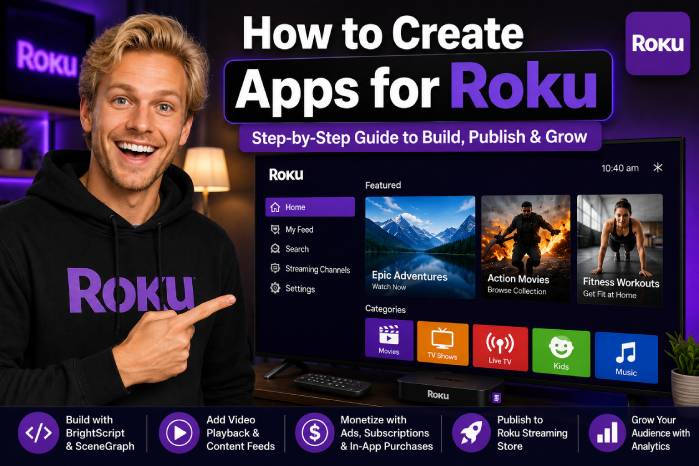
Why Roku App Development Still Matters
Roku app development is one of the most practical ways to enter the connected TV market. While mobile apps are built for touchscreens and websites are built for browsers, Roku apps are built for the living room: a big screen, a remote control, and a viewer who wants a simple, smooth, lean-back experience.
A Roku app can be used for movies, live TV, faith-based content, fitness videos, education, local news, music, documentaries, sports highlights, kids content, business training, or niche streaming communities. For content owners and developers, Roku is not just another app platform. It is a distribution channel for video-first experiences.
Official Roku documentation explains that Roku app interfaces are built with SceneGraph, Roku’s object-oriented XML framework, while app behavior is written with BrightScript, Roku’s scripting language. Roku also states that there is no cost to enroll in the developer program, develop apps, or publish them to the Roku Streaming Store.
This guide explains how to create Roku apps step by step, from idea and architecture to video playback, content feeds, monetization, certification, and publishing.
📺 What Is a Roku App?
A Roku app, often historically called a “channel,” is an application that runs on Roku devices and Roku-powered TVs. The app can present video content, categories, live streams, user accounts, subscriptions, advertisements, search, deep linking, and interactive TV experiences.
A typical Roku app includes:
✅ A home screen
✅ Rows of content
✅ Categories
✅ Video detail pages
✅ A video player
✅ Search or filtering
✅ Remote-control navigation
✅ Content metadata
✅ Analytics
✅ Monetization logic
✅ Store listing assets
The most common Roku app type is a video streaming app. This could be an AVOD app, an SVOD app, a live TV app, a FAST-style app, or a branded video library.
🧠 How Roku Development Is Different From Web or Mobile
Roku development requires a different mindset.
On a website, users click with a mouse.
On mobile, users tap and swipe.
On Roku, users navigate with a remote.
That means your app must be built around focus movement. Every button, card, row, menu item, and video thumbnail must be easy to reach using up, down, left, right, OK, and back.
Roku apps also need to feel fast. Viewers are usually sitting on a couch. They are not interested in complex loading screens, confusing menus, or tiny text. The best Roku apps are simple, visual, responsive, and stable.
Roku’s SceneGraph documentation covers core app concepts such as XML screens, event handling, threading, data scoping, node observers, and graceful degradation, which are all important when building TV-friendly interfaces.
🧱 The Basic Roku App Architecture
A professional Roku app usually has six main parts:
1. SceneGraph UI
This defines the visual structure of the app: screens, rows, buttons, menus, posters, labels, and video components.
2. BrightScript Logic
BrightScript controls app behavior: loading data, handling events, responding to remote input, updating UI components, and managing playback.
3. Content Feed or API
Your app needs content data. This usually comes from JSON, a CMS, a custom backend, WordPress API, or a streaming platform.
4. Video Streaming
Most Roku video apps use HLS streams or supported video URLs. Roku’s Video node provides controlled playback for live or video-on-demand content.
5. Monetization
You can monetize with ads, subscriptions, transactions, sponsorships, or lead generation. For ads, Roku provides the Roku Advertising Framework, also known as RAF.
6. Publishing and Certification
Before going public in the Roku Streaming Store, your app must pass Roku’s publishing and certification requirements. Roku states that new and updated public apps are reviewed for design, performance, and platform compliance.
🎯 Step 1: Choose the Type of Roku App You Want to Build
Before writing code, define your app model.
📡 AVOD App
AVOD means Advertising Video on Demand. Users watch for free, and you earn revenue from ads.
Best for:
🎬 Movies
📺 Shows
📰 News
🎵 Music
🙏 Faith-based content
🏋️ Fitness clips
🎓 Free education
📡 Live streams
AVOD works best when you can generate watch time. Ads need volume.
💳 SVOD App
SVOD means Subscription Video on Demand. Users pay monthly or yearly.
Best for:
🏋️ Fitness programs
🎓 Courses
🙏 Premium faith content
📚 Training libraries
🎬 Exclusive video libraries
🧘 Wellness content
SVOD works when the content is valuable enough for users to keep paying.
🎟️ TVOD App
TVOD means Transactional Video on Demand. Users pay for specific videos, rentals, events, or premium access.
Best for:
🎤 Live events
🎓 Paid workshops
🥊 Special broadcasts
🎭 Performances
📚 Individual courses
📺 Live TV App
A live app plays one or more live streams.
Best for:
📰 News
🙏 Church services
⚽ Sports
🎵 Music channels
🎙️ Live shows
📡 Local TV
🧩 Hybrid App
A hybrid app combines free content, ads, premium subscriptions, and live streams.
For many businesses, hybrid is the strongest long-term model.
🛠️ Step 2: Set Up Your Roku Developer Environment
To create apps for Roku, you need a basic development setup.
You will usually need:
💻 A computer
📺 A Roku device or Roku TV
🌐 Same local network for computer and Roku
🧰 Code editor
📦 Roku Developer account
🔧 Developer Mode enabled on your Roku device
📁 App project folder
🧪 Testing workflow
Roku’s first steps documentation recommends enrolling in the Roku Developer Program, getting a Roku device, and activating developer mode so you can run sample apps and test your own apps.
A real Roku device is important. Emulators and theory are useful, but TV apps must be tested on actual hardware. Performance, remote control behavior, video playback, buffering, and focus navigation can behave differently on real devices.
📁 Step 3: Understand a Basic Roku App Folder Structure
A simple Roku app might look like this:
roku-app/
  manifest
  source/
    main.brs
  components/
    MainScene.xml
    MainScene.brs
    HomeScreen.xml
    HomeScreen.brs
    VideoScreen.xml
    VideoScreen.brs
  images/
    logo.png
    background.jpg
    placeholder.png
The exact structure can vary, but most Roku apps include:
manifest — app metadata and configuration
source/main.brs — entry point
components/ — SceneGraph XML and BrightScript files
images/ — app images and UI assets
fonts/ — optional custom fonts
locale/ — optional translations
Roku development is not the same as building a normal HTML website. You are working with Roku’s SceneGraph components, BrightScript files, and device-specific behavior.
🧾 Step 4: Create the Manifest File
The manifest file contains important metadata about your Roku app.
Example:
title=My Roku App
subtitle=Streaming video app
major_version=1
minor_version=0
build_version=00001
ui_resolutions=hd
mm_icon_focus_hd=pkg:/images/logo.png
splash_screen_hd=pkg:/images/background.jpg
The manifest can include app name, version, splash screen, icons, resolution settings, and other configuration values.
For a serious app, keep your manifest clean and organized. Versioning matters because each update needs to be controlled and tested.
🧠 Step 5: Learn SceneGraph and BrightScript
Roku apps are primarily built with SceneGraph and BrightScript.
SceneGraph defines the UI.
BrightScript defines the logic.
Roku’s official documentation explains that SceneGraph is Roku’s proprietary object-oriented XML framework for UI design, while BrightScript is the scripting language used for application behavior.
A basic SceneGraph component might look like this:
<?xml version="1.0" encoding="utf-8" ?>

<component name="MainScene" extends="Scene">
  <children>
    <Label
      id="titleLabel"
      text="Welcome to My Roku App"
      width="1280"
      height="100"
      horizAlign="center"
      vertAlign="center"
      translation="[0, 80]" />
  </children>

  <script type="text/brightscript" uri="pkg:/components/MainScene.brs" />
</component>
And the related BrightScript file:
sub init()
    m.titleLabel = m.top.findNode("titleLabel")
    m.titleLabel.text = "Welcome to My Roku App"
end sub
This is the basic pattern:
XML creates the UI.
BrightScript finds nodes and controls behavior.
🏠 Step 6: Build a Simple Home Screen
The home screen is the first real impression of your Roku app.
A good Roku home screen should include:
✅ Logo or app identity
✅ Featured content
✅ Content rows
✅ Categories
✅ Continue watching
✅ Live stream button
✅ Search, if needed
✅ Settings or account access
A basic layout could be:
------------------------------------------------
LOGO
------------------------------------------------
Featured Video
------------------------------------------------
New Releases
[Video] [Video] [Video] [Video]
------------------------------------------------
Popular
[Video] [Video] [Video] [Video]
------------------------------------------------
Live
[Live Channel]
------------------------------------------------
On TV, visual hierarchy is everything. Use large thumbnails, readable text, and clear focus states.
Avoid overcrowding. A Roku home screen should feel simple and calm, not like a busy website.
📦 Step 7: Create a Content Feed
Most Roku apps load content from a feed or API.
A simple JSON feed might look like this:
{
  "categories": [
    {
      "title": "Featured",
      "items": [
        {
          "id": "video-001",
          "title": "How to Build a Roku App",
          "description": "A beginner-friendly guide to Roku development.",
          "thumbnail": "https://example.com/images/video-001.jpg",
          "videoUrl": "https://example.com/videos/video-001/master.m3u8",
          "duration": 1800
        }
      ]
    }
  ]
}
Your app reads this feed, creates content nodes, and displays the videos in rows.
For production, your feed should include:
✅ Unique video ID
✅ Title
✅ Description
✅ Thumbnail
✅ Video URL
✅ Duration
✅ Category
✅ Rating
✅ Language
✅ Release date
✅ Closed captions, if available
✅ Availability rules
✅ Monetization rules
A clean content feed makes the app easier to update. Instead of publishing a new app version every time you add a video, you update your backend feed.
▶️ Step 8: Play Video on Roku
Video playback is the heart of many Roku apps.
Roku’s Playing Videos documentation states that playing video uses the SceneGraph Video node together with content metadata.
A simplified SceneGraph video player component might include:
<component name="VideoScreen" extends="Group">
  <children>
    <Video
      id="videoPlayer"
      width="1280"
      height="720" />
  </children>

  <script type="text/brightscript" uri="pkg:/components/VideoScreen.brs" />
</component>
And BrightScript logic:
sub init()
    m.videoPlayer = m.top.findNode("videoPlayer")
end sub

sub playVideo(videoUrl as string, title as string)
    content = CreateObject("roSGNode", "ContentNode")
    content.url = videoUrl
    content.title = title
    content.streamFormat = "hls"

    m.videoPlayer.content = content
    m.videoPlayer.control = "play"
end sub
For real production, you also need to handle:
✅ Buffering
✅ Errors
✅ Resume playback
✅ Captions
✅ End-of-stream behavior
✅ Live streams
✅ Ad breaks
✅ Analytics events
✅ Video quality
✅ Stream availability
Do not treat playback as an afterthought. On Roku, the player experience is the product.
🎮 Step 9: Handle Remote Control Navigation
Roku users navigate with the remote. Your app must always know what is focused.
Important remote actions include:
⬆️ Up
⬇️ Down
⬅️ Left
➡️ Right
✅ OK
↩️ Back
⏯️ Play/Pause
⏩ Fast-forward
⏪ Rewind
A simple BrightScript key handler might look like this:
function onKeyEvent(key as string, press as boolean) as boolean
    if press = false then return false

    if key = "back"
        handleBack()
        return true
    else if key = "OK"
        selectCurrentItem()
        return true
    else if key = "left"
        moveFocusLeft()
        return true
    else if key = "right"
        moveFocusRight()
        return true
    else if key = "up"
        moveFocusUp()
        return true
    else if key = "down"
        moveFocusDown()
        return true
    end if

    return false
end function
Navigation is one of the biggest differences between a beginner Roku app and a professional one.
A good Roku app never leaves the user confused. The viewer should always know where they are, what is selected, and how to go back.
🎨 Step 10: Design a TV-Friendly User Interface
A Roku app should be designed for the 10-foot experience.
Use these principles:
✅ Use Large Text
Tiny fonts are hard to read on TV. Use large titles, simple descriptions, and short labels.
✅ Use Strong Focus States
The selected item must be obvious. Use scale, border, glow, or contrast.
✅ Reduce Typing
Typing with a remote is slow. Avoid forcing users to type unless necessary.
✅ Keep Screens Simple
Do not overload the interface with too many rows, buttons, menus, and labels.
✅ Use High-Quality Images
Thumbnails are extremely important. A strong thumbnail can increase video starts.
✅ Make Back Behavior Predictable
The Back button should never surprise users. It should close overlays, return to the previous screen, or exit only when expected.
✅ Optimize for Speed
Slow loading feels worse on TV than on desktop. Cache what you can and show loading states clearly.
💰 Step 11: Monetize Your Roku App
Roku apps can be monetized in several ways.
📢 Advertising
Advertising is common for free video apps. Roku provides the Roku Advertising Framework, which is designed to help integrate video advertising into Roku apps.
Roku’s advertising requirements state that apps must integrate RAF for all ads without modifying, obstructing, or disabling RAF functionality, except for specific exempt cases such as replays of live broadcast streams unless new ads are inserted.
Advertising works best when your app has:
📊 Strong watch time
📊 Repeat viewers
📊 Brand-safe content
📊 Clear categories
📊 Good video quality
📊 Stable playback
💳 Subscriptions
Subscription apps can charge monthly or yearly for access.
Good subscription categories include:
🏋️ Fitness
🎓 Education
🙏 Faith-based premium content
📚 Professional training
🧘 Wellness
🎬 Exclusive entertainment
Roku documentation states that SVOD and TVOD apps must complete sign-ups and sign-ins on-device for certification, without sending users away to visit a non-Roku website.
🎟️ Transactions
Transactional models work for rentals, purchases, events, or paid access to specific content.
🤝 Sponsorships
Sponsorships can work well for niche apps. For example, a local sports app, cooking app, church app, or business education app may be sponsored by brands that want to reach that specific audience.
🧲 Lead Generation
Some Roku apps make money indirectly.
Examples:
🏠 Real estate app generates buyer leads
🎓 Education app sells courses
🙏 Church app increases donations
🏋️ Fitness app sells coaching
💼 Business app sells consulting
A Roku app can be a media product, a sales funnel, or both.
📊 Step 12: Add Analytics
Analytics are essential.
Track:
📈 App launches
📈 Active users
📈 Video starts
📈 Watch time
📈 Completion rate
📈 Category popularity
📈 Search terms
📈 Playback errors
📈 Buffering events
📈 Ad impressions
📈 Subscription conversions
📈 Churn signals
Roku’s Developer Dashboard is the central hub for managing apps, Roku Pay products, search feeds, analytics, and partner payouts.
Without analytics, you are guessing. With analytics, you can improve thumbnails, categories, video order, content strategy, monetization, and retention.
🧪 Step 13: Test the Roku App Properly
Testing is not optional.
Test:
✅ App launch
✅ Home screen loading
✅ Feed loading
✅ Empty feed behavior
✅ Broken image URLs
✅ Broken video URLs
✅ Slow internet
✅ Remote navigation
✅ Back button
✅ Long playback sessions
✅ Video end behavior
✅ Live stream behavior
✅ Ad playback
✅ Resume behavior
✅ Search
✅ Account login
✅ Subscription flow
✅ Deep linking
✅ Performance on older devices
Roku certification documentation includes tools such as Static Analysis and App Behavior Analysis to help developers identify certification-related issues and verify performance and deep linking requirements.
A simple rule: test the app like a normal viewer, not like the developer who already knows where everything is.
📦 Step 14: Prepare for Roku Publishing
When your app is ready, you publish it through the Roku Developer Dashboard.
Roku’s App Publishing documentation explains that developers can publish beta and public apps using the Developer Dashboard, including packaging, Streaming Store listing setup, certification, Static Analysis, and other publishing steps.
You will need:
📌 App package
📌 App name
📌 Description
📌 Category
📌 Store images
📌 Screenshots
📌 Privacy policy
📌 Support contact
📌 Content rating information
📌 Test account, if required
📌 Monetization settings
📌 Deep linking data, if required
📌 Certification testing
A polished store listing matters. Your app icon, screenshots, description, and category influence how users perceive the app before installing it.
✅ Roku Certification: What to Prepare For
Roku certification is designed to ensure apps are stable, compliant, performant, and consistent for viewers.
Roku’s certification criteria cover areas including performance, advertising, deep linking, and UI requirements.
Before submitting, check:
✅ App does not crash
✅ Remote navigation works
✅ Back button works
✅ Video playback is stable
✅ Streams load correctly
✅ Ads comply with Roku requirements
✅ Deep links work, if applicable
✅ App loads within acceptable performance expectations
✅ No broken images
✅ No broken feeds
✅ No empty categories
✅ Privacy policy is available
✅ Store metadata is accurate
✅ User account flow works
✅ Subscription flow works, if applicable
Certification failures are common when apps are rushed. The best strategy is to test deeply before submission.
🧩 Example MVP Roadmap for a Roku Video App
Here is a practical roadmap for building your first Roku app.
Phase 1: Strategy
Define:
🎯 Niche
🎯 Audience
🎯 Content model
🎯 Monetization model
🎯 First version scope
🎯 Content feed structure
Phase 2: Prototype
Build:
✅ Home screen
✅ One content row
✅ Video detail page
✅ Video playback
✅ Remote navigation
✅ Basic JSON feed
Phase 3: MVP
Add:
✅ Multiple categories
✅ Better thumbnails
✅ Loading states
✅ Error screens
✅ Analytics
✅ Live stream, if needed
✅ Basic settings page
Phase 4: Monetization
Add:
💰 Ads with RAF
💰 Subscription logic
💰 Sponsorship placements
💰 Lead generation CTA
💰 Premium content rules
Phase 5: Certification Preparation
Run:
🧪 Device testing
🧪 Static Analysis
🧪 App behavior checks
🧪 Deep linking checks
🧪 Ad playback checks
🧪 Performance testing
Phase 6: Publish and Improve
After launch:
📊 Monitor analytics
📊 Fix crashes
📊 Improve thumbnails
📊 Reorder categories
📊 Add content
📊 Test monetization
📊 Improve retention
🏆 Best Roku App Ideas in 2026
Some Roku app categories are especially strong.
🎓 Education Apps
Courses, tutorials, training, language learning, and professional education can work well on Roku because TV is comfortable for long-form viewing.
🏋️ Fitness Apps
Workouts are excellent for TV. Users want to follow exercises on a large screen.
🙏 Faith-Based Apps
Churches, ministries, and spiritual communities can use Roku for sermons, services, music, and teaching archives.
📰 Local News Apps
Local news and community programming can build loyalty because the content is specific and underserved.
🎬 Niche Movie Apps
A curated movie library can work if it has clear genre positioning.
🎵 Music and Performance Apps
Music videos, concerts, interviews, and artist channels can create strong TV experiences.
🏠 Real Estate Apps
Luxury properties, virtual tours, and real estate shows look excellent on TV.
💼 Business and Training Apps
Business education, entrepreneurship, marketing, and professional training can work well when the audience values learning.
⚠️ Common Mistakes to Avoid
Mistake 1: Building Without a Clear Audience
Do not create a Roku app just because you can. Know who the viewer is.
Mistake 2: Using Poor Video Hosting
Bad streaming quality ruins the experience.
Mistake 3: Ignoring Remote Navigation
A web layout does not automatically work on TV.
Mistake 4: Weak Thumbnails
TV is visual. Poor artwork lowers engagement.
Mistake 5: Too Much Text
Viewers do not want to read long paragraphs on TV.
Mistake 6: No Monetization Plan
Choose your model early: ads, subscription, sponsorship, transactions, or lead generation.
Mistake 7: No Analytics
Without data, you cannot improve.
Mistake 8: Submitting Too Early
Certification failures waste time. Test before submission.
📋 Final Roku App Launch Checklist
Before publishing, confirm:
✅ Developer account created
✅ Roku device available for testing
✅ Developer Mode enabled
✅ App sideloaded successfully
✅ Manifest configured
✅ SceneGraph UI working
✅ BrightScript logic stable
✅ Remote navigation smooth
✅ Video playback working
✅ Content feed loading
✅ Error states handled
✅ Analytics added
✅ Ads or subscriptions tested
✅ Privacy policy ready
✅ Store assets prepared
✅ Certification tests reviewed
✅ App package uploaded
✅ Beta testing completed
✅ Public submission prepared
🔮 The Future of Roku App Development
Roku app development is becoming more strategic. It is not only about building a simple video player. The strongest Roku apps will combine:
🤖 Personalized recommendations
📺 Live and on-demand video
📢 Better ad experiences
💳 Subscription options
📊 Data-driven programming
🧩 Deep linking
🎨 Strong visual branding
🌎 Niche global audiences
📱 Web and mobile companion funnels
💼 Business models beyond ads
The opportunity is not just technical. It is entrepreneurial.
A Roku app can become a streaming brand, a content business, a lead generation channel, a subscription product, or a media extension of an existing company.
✅ Roku Apps Are a Powerful Smart TV Opportunity
Learning how to create apps for Roku is a valuable skill for developers, content owners, entrepreneurs, agencies, educators, churches, creators, and streaming businesses.
The basic path is clear:
- Choose a strong app idea.
- Define the business model.
- Learn SceneGraph and BrightScript.
- Build a clean TV interface.
- Connect a content feed.
- Implement video playback.
- Add remote-control navigation.
- Test on real Roku devices.
- Add monetization.
- Prepare for certification.
- Publish through the Developer Dashboard.
- Improve based on analytics.
A successful Roku app is not just code. It is a complete living-room experience.
The best apps are simple, fast, visual, stable, and easy to navigate. They respect the viewer’s time. They make content easy to discover. They play video reliably. They monetize without destroying the user experience.
If you build with that mindset, Roku can become more than another platform.
It can become a serious distribution channel for your content, brand, or streaming business.