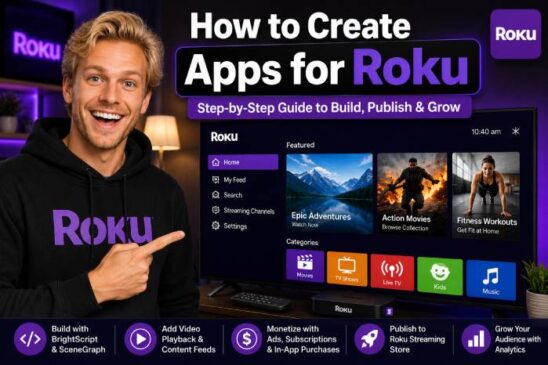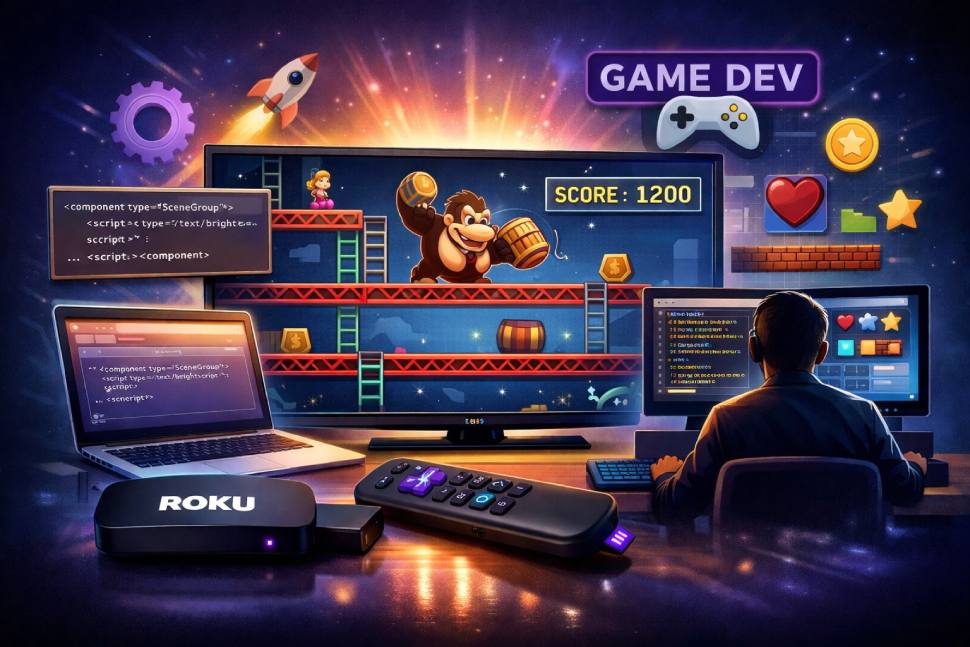
Developing games for Roku Smart TVs is a very different experience from building games for mobile, desktop, or traditional consoles. Roku is not a Unity-first or Unreal-first gaming platform. It is a streaming-first platform where apps, channels, and lightweight games must be designed around a television screen, a simple remote control, limited hardware resources, and a living-room user experience.
That difference is exactly what makes Roku game development interesting.
A good Roku game does not need to compete with PlayStation, Xbox, Nintendo Switch, or mobile gaming. Instead, it should feel simple, fast, comfortable, and instantly understandable from the sofa. Trivia games, puzzle games, quiz games, memory games, word games, casual arcade concepts, educational games, kids’ games, and family-friendly party games can work especially well on Roku because they fit the device’s natural environment: a big screen, a remote control, and a relaxed user.
Roku apps are commonly built using SceneGraph and BrightScript. SceneGraph is Roku’s XML-based framework for designing the user interface, while BrightScript is the scripting language used to define app behavior. Roku’s own developer documentation compares the relationship between SceneGraph and BrightScript to the way HTML and JavaScript work together on the web.
In this guide, you will learn how Roku game development works, what tools you need, how to structure a simple game, how to handle remote-control input, how to create a basic game loop, how to test your game on a real Roku device, and how to prepare your project for publication.
🧠 Why Build Games for Roku Smart TVs?
Most developers think about Roku only as a video streaming platform. That is understandable. Roku is widely associated with streaming apps, OTT channels, live TV apps, FAST channels, VOD libraries, and media playback. But the Roku ecosystem can also include games. Roku’s Streaming Store includes not only traditional streaming apps, but also games, podcasts, radio stations, social networking apps, screensavers, and themes.
That means a game can exist on Roku as a public app, provided it follows Roku’s development, design, performance, and certification expectations.
The opportunity is not to build heavy 3D games. The opportunity is to build games that match the Roku experience:
🎮 Simple controls
📺 Big-screen readable interface
👨👩👧 Family-friendly gameplay
⚡ Fast loading
🧩 Easy replay value
🕹️ Remote-control-first interaction
🌎 Broad accessibility for casual users
Think of a Roku game as something people can open without a tutorial, play with a remote, understand in ten seconds, and enjoy for a few minutes at a time.
That is the real mindset shift.
On mobile, the player has touch, gestures, sensors, keyboard input, notifications, and high-frequency interactions. On Roku, the player usually has directional buttons, OK, Back, Play/Pause, and a few media keys. Roku’s onKeyEvent() documentation lists common remote key strings such as up, down, left, right, OK, back, play, rewind, fastforward, replay, and options; it also notes that some keys, such as Home, are handled globally by Roku firmware and cannot be overridden by application code.
This changes everything about game design.
🧩 The Best Types of Games for Roku
Not every game idea is a good Roku idea. Before writing code, you should choose a concept that naturally works with a remote control.
Good Roku game categories include:
Trivia games
Perfect for family play, educational apps, sports quizzes, Bible quizzes, movie quizzes, music quizzes, history quizzes, or brand-sponsored entertainment.
Memory games
Simple card matching, sequence repetition, color memory, animal matching, logo matching, or kids’ learning games.
Word games
Guess the word, spelling challenges, crossword-style puzzles, anagram games, vocabulary games, and language-learning games.
Puzzle games
Tile movement, pattern recognition, number puzzles, logic puzzles, and casual brain-training experiences.
Turn-based games
Games that do not require fast reflexes are ideal because Roku remotes are not designed for high-speed competitive input.
Simple arcade games
A lightweight collect-the-item, avoid-the-obstacle, maze, or timing game can work if you keep animation simple and controls forgiving.
The common rule is this: the player should never fight the remote.
A Roku game should not ask the user to perform complex input combinations. It should not depend on rapid button mashing. It should not require precise analog movement. It should not overload the screen with small text or tiny objects.
The more your game feels like it belongs on a TV, the better it will perform as a user experience.
🛠️ Roku Game Development Stack
To develop games for Roku Smart TVs, you mainly need to understand four pieces:
1. SceneGraph 🧱
SceneGraph is the framework used to build Roku app screens. It uses XML components to describe visual structure and BrightScript files to control logic. Roku’s SceneGraph documentation explains that the framework is designed to reduce the amount of procedural code needed to render screens by allowing developers to configure the appearance of screen components through XML attributes.
For games, SceneGraph can be used to build:
🎮 Title screens
🧭 Menus
🏆 Scoreboards
🧩 Game boards
📦 UI components
📺 Instructions screens
🎯 Interactive visual elements
SceneGraph is especially useful for casual games with menus, labels, rectangles, posters, animations, and simple object movement.
2. BrightScript ⚙️
BrightScript is Roku’s scripting language. It controls logic, state, input, scoring, timers, navigation, and component behavior. Roku’s BrightScript language reference describes it as a scripting language for embedded devices, with syntax that is not C‑like and with support for dynamic typing and declared types.
For games, BrightScript usually handles:
🕹️ Remote-control input
🔁 Game loop logic
🎯 Collision detection
🏆 Score changes
⏱️ Timer events
🧠 State management
📦 Data loading
🔊 Audio triggers, when used
3. roScreen for 2D Game Drawing 🖼️
For certain 2D games, Roku also provides roScreen, which offers a full-screen drawing surface and input events. Roku’s documentation says that a 2D game application needs at least one roScreen component to draw and receive events, and it also notes that once an roScreen is created, the display stack enters “Game Mode.”
This matters because roScreen is lower-level than SceneGraph. It gives more direct drawing control, but it also changes how your app behaves. Roku’s documentation states that other screen components cannot be intermixed with roScreen while the roScreen display stack is active.
For most modern beginner-friendly Roku games, SceneGraph is usually easier. For more custom 2D drawing, roScreen may be useful.
4. A Real Roku Device 📺
You should test on real hardware. Roku’s development setup documentation explains that developers need a Roku user account, developer enrollment, a test device enabled for development, and the ability to sideload an app and view output in the debug console.
Do not rely only on theory. Roku development becomes much easier when you test directly on a device connected to your TV.
🏗️ Recommended Project Structure
A simple Roku game project can start with this structure:
roku-game/
│
├── manifest
│
├── source/
│   └── main.brs
│
├── components/
│   ├── GameScene.xml
│   └── GameScene.brs
│
├── images/
│   ├── logo.png
│   ├── player.png
│   └── background.png
│
└── audio/
    └── click.mp3
Each part has a job:
manifest
Defines the app title, version, icon, splash screen, and other package-level settings.
source/main.brs
Starts the Roku app and loads the main SceneGraph scene.
components/GameScene.xml
Defines the visual layout of the game screen.
components/GameScene.brs
Controls the logic of the game.
images/
Stores icons, backgrounds, sprites, and visual assets.
audio/
Stores sound effects or background music, if used.
Keep the first version simple. Your goal is not to build the perfect game on day one. Your first goal is to get a playable prototype running on the TV.
📄 Basic Roku Manifest Example
Here is a minimal example of a Roku manifest file:
title=Roku Mini Game
major_version=1
minor_version=0
build_version=00001

ui_resolutions=hd
mm_icon_focus_hd=pkg:/images/logo.png
splash_screen_hd=pkg:/images/splash.png
For a real project, you will eventually add more metadata, images, and configuration. But at the prototype stage, keep the manifest small and functional.
One important point: the manifest is not just a technical file. It is part of how your app is packaged and understood by the Roku environment. A messy manifest can create avoidable errors later in testing and submission.
🚀 Starting the Game with main.brs
A SceneGraph Roku app usually starts by creating an roSGScreen, setting a message port, creating a scene, and showing it.
sub Main()
    screen = CreateObject("roSGScreen")
    port = CreateObject("roMessagePort")

    screen.SetMessagePort(port)

    scene = screen.CreateScene("GameScene")
    screen.Show()

    while true
        msg = wait(0, port)

        if type(msg) = "roSGScreenEvent"
            if msg.IsScreenClosed()
                return
            end if
        end if
    end while
end sub
This is the entry point. It does not contain the entire game. It simply opens the main game scene and keeps the app alive until the screen is closed.
That is a clean pattern because your real game logic stays inside your SceneGraph component.
🎮 Creating a Simple Game Scene
Now create components/GameScene.xml.
This example creates a basic screen with:
🎯 A background
🏆 A score label
🔷 A player rectangle
🟡 A collectible item
⏱️ A timer to simulate a game loop
<?xml version="1.0" encoding="utf-8" ?>

<component name="GameScene" extends="Scene">

    <script type="text/brightscript" uri="pkg:/components/GameScene.brs" />

    <children>

        <Rectangle
            id="background"
            width="1280"
            height="720"
            color="0x101820FF" />

        <Label
            id="titleLabel"
            text="Roku Mini Game"
            translation="[60, 35]"
            width="800"
            height="50"
            font="font:LargeBoldSystemFont"
            color="0xFFFFFFFF" />

        <Label
            id="scoreLabel"
            text="Score: 0"
            translation="[60, 95]"
            width="400"
            height="40"
            font="font:MediumBoldSystemFont"
            color="0xFFFFFFFF" />

        <Rectangle
            id="player"
            width="70"
            height="70"
            translation="[200, 300]"
            color="0x00A2FFFF" />

        <Rectangle
            id="coin"
            width="50"
            height="50"
            translation="[850, 320]"
            color="0xFFD700FF" />

        <Label
            id="helpLabel"
            text="Use the remote arrows to move. Collect the yellow square."
            translation="[60, 650]"
            width="1100"
            height="40"
            font="font:MediumSystemFont"
            color="0xCCCCCCFF" />

        <Timer
            id="gameLoop"
            repeat="true"
            duration="0.033" />

    </children>

</component>
This is not visually sophisticated yet, but it gives you a working foundation.
You have a player. You have a collectible. You have a score. You have a timer. You have remote-control movement.
That is enough to begin.
🕹️ Handling Remote-Control Input
Roku games must be designed for the remote. The basic interaction model is usually:
⬆️ Up
⬇️ Down
⬅️ Left
➡️ Right
✅ OK
↩️ Back
▶️ Play/Pause, when useful
Roku’s event documentation explains that remote control key presses can be handled by writing an onKeyEvent() function in the component script. The function receives the key and a Boolean press value, and it should return true if the event was handled.
Here is a basic GameScene.brs:
sub init()
    m.player = m.top.findNode("player")
    m.coin = m.top.findNode("coin")
    m.scoreLabel = m.top.findNode("scoreLabel")
    m.gameLoop = m.top.findNode("gameLoop")

    m.score = 0
    m.speed = 12
    m.vx = 0
    m.vy = 0

    m.gameLoop.observeField("fire", "onGameLoop")
    m.gameLoop.control = "start"

    m.top.setFocus(true)
end sub


function onKeyEvent(key as String, press as Boolean) as Boolean
    handled = false

    if press
        if key = "left"
            m.vx = -m.speed
            handled = true

        else if key = "right"
            m.vx = m.speed
            handled = true

        else if key = "up"
            m.vy = -m.speed
            handled = true

        else if key = "down"
            m.vy = m.speed
            handled = true

        else if key = "OK"
            resetGame()
            handled = true
        end if

    else
        if key = "left" or key = "right"
            m.vx = 0
            handled = true

        else if key = "up" or key = "down"
            m.vy = 0
            handled = true
        end if
    end if

    return handled
end function
This creates basic movement. When the player presses an arrow, the velocity changes. When the player releases the arrow, movement stops.
That feels natural on a remote.
For many Roku games, this is better than trying to mimic console-style controls. Keep it simple. Let the user move, select, pause, and return.
🔁 Creating a Game Loop
Games need repeated updates. In SceneGraph, a practical way to simulate a basic game loop is with a Timer node.
The XML already created this:
<Timer
    id="gameLoop"
    repeat="true"
    duration="0.033" />
A duration of 0.033 is roughly 30 updates per second. For many casual Roku games, 30 FPS-style logic is enough. You do not need to push the device as if it were a gaming console.
Now add this to GameScene.brs:
sub onGameLoop()
    movePlayer()
    checkCollision()
end sub


sub movePlayer()
    pos = m.player.translation

    newX = pos[0] + m.vx
    newY = pos[1] + m.vy

    if newX < 0 then newX = 0
    if newY < 0 then newY = 0
    if newX > 1210 then newX = 1210
    if newY > 650 then newY = 650

    m.player.translation = [newX, newY]
end sub
This updates the player’s position while keeping the player inside the screen.
The values 1210 and 650 come from the screen size minus the player size. In a polished project, you would avoid hardcoding too many values and instead define constants. But for a first prototype, this is fine.
🎯 Adding Collision Detection
For a simple collectible game, collision detection can be basic.
sub checkCollision()
    playerPos = m.player.translation
    coinPos = m.coin.translation

    playerX = playerPos[0]
    playerY = playerPos[1]

    coinX = coinPos[0]
    coinY = coinPos[1]

    if abs(playerX - coinX) < 60 and abs(playerY - coinY) < 60
        collectCoin()
    end if
end sub


sub collectCoin()
    m.score = m.score + 1
    m.scoreLabel.text = "Score: " + m.score.toStr()

    newX = 100 + rnd(1000)
    newY = 150 + rnd(430)

    m.coin.translation = [newX, newY]
end sub
This checks whether the player is close enough to the coin. If yes, the score increases and the coin moves to a new random position.
Now you have a playable mini-game.
It is simple, but it includes the core foundation:
🎮 Input
🔁 Game loop
🎯 Collision
🏆 Score
📺 TV-friendly screen layout
From here, you can expand into levels, enemies, timers, menus, sounds, lives, difficulty, and saved progress.
🔄 Resetting the Game
Earlier, the OK button called resetGame(). Add this:
sub resetGame()
    m.score = 0
    m.scoreLabel.text = "Score: 0"

    m.player.translation = [200, 300]
    m.coin.translation = [850, 320]

    m.vx = 0
    m.vy = 0
end sub
This gives the player a quick restart.
On Roku, restart and resume behavior should be easy. Users may open your game casually, play for a few minutes, exit, and return later. Do not make basic actions difficult.
🎨 Designing for the TV Screen
A Roku game is not just a game running on a bigger display. It is a game experienced from across the room.
That means your design must be readable from a sofa.
Use:
✅ Large text
✅ Strong contrast
✅ Simple menus
✅ Clear focus states
✅ Big buttons
✅ Minimal clutter
✅ Obvious instructions
✅ Generous spacing
Avoid:
❌ Tiny text
❌ Complex HUDs
❌ Overloaded menus
❌ Touch-style buttons
❌ Fast precision input
❌ Low-contrast colors
❌ Mobile-first layouts
A good Roku game should pass the “three-meter test”: if someone is sitting several feet away from the TV, can they still understand the screen?
For example, instead of a small mobile-style button that says:
StartUse a large, focused TV button:
▶ Start GameInstead of a long paragraph explaining the rules, show one short instruction:
Use arrows to move. Press OK to restart.The best Roku games feel obvious.
📺 Remote-Control-First Game Design
The remote is not a limitation if you design around it. It becomes a creative constraint.
A Roku remote encourages slower, clearer, more intentional gameplay. That is why puzzle games, trivia games, and turn-based experiences are so natural.
Here are some practical control patterns:
Pattern 1: Directional Movement
Use arrows to move a character or cursor.
Best for:
🎮 Mazes
🎯 Collecting games
🧩 Tile puzzles
🧠 Memory boards
Pattern 2: Focus Navigation
Use arrows to move between buttons, cards, or answers.
Best for:
❓ Trivia
🔤 Word games
🧩 Matching games
🏆 Menu systems
Pattern 3: OK to Select
Use OK as the main action button.
Best for:
✅ Answer selection
🎯 Confirming moves
📦 Opening cards
▶️ Starting levels
Pattern 4: Back to Pause or Exit
The Back button should feel predictable. In a game, it can open a pause menu first, then exit from there.
Do not trap users. Roku users expect the Back button to work.
Pattern 5: Play/Pause for Pause
If your game has real-time movement, Play/Pause can pause the game. But keep OK and Back behavior clear too.
The golden rule is simple: every button should do what the user expects.
⚡ Performance Tips for Roku Games
Roku devices vary in capability. Some users may have newer Roku TVs. Others may have older streaming players. A good game should be lightweight.
Use these performance principles:
Keep Assets Small 🖼️
Do not load huge images if you only need small sprites. Compress PNG and JPG files properly. Use the correct resolution for TV.
Avoid Too Many Moving Objects 🔁
A casual Roku game does not need hundreds of animated elements. Start with a few objects and increase carefully.
Reduce Constant Node Creation 🧱
Do not create and destroy visual nodes every frame. Reuse existing nodes when possible.
Use Simple Collision Logic 🎯
For most casual games, rectangle-based or distance-based collision is enough.
Limit Heavy Calculations 🧮
BrightScript is not meant for complex physics simulations. Keep game logic clean and practical.
Test on Real Devices 📺
Performance can feel different on a real Roku device than in a desktop-like development mindset. Roku’s development flow includes sideloading the app to a Roku device and using the debug console to inspect runtime output.
A Roku game that loads fast and runs smoothly will feel more professional than a visually ambitious game that stutters.
🧪 Testing and Debugging
Testing a Roku game is not only about checking whether it opens. You need to test the full living-room experience.
Test these points:
🎮 Does the remote control feel responsive?
📺 Is the text readable from the sofa?
↩️ Does the Back button behave correctly?
🔁 Can the game restart without bugs?
🏆 Does the score update correctly?
⏸️ What happens if the user pauses or exits?
🌐 Does the app behave well without network access, if it uses online data?
🧠 Can a first-time user understand the game in ten seconds?
For debugging, use print statements carefully:
print "Player position: "; m.player.translation
print "Score: "; m.score
Roku’s Hello World development documentation specifically mentions sideloading the app and using the Roku debug console to view runtime output.
Do not leave excessive debug output in production. During development, logs help. In production, too much logging can make debugging harder and may expose internal details.
📦 Packaging a Roku Game
Once the game is working, you need to package it.
Roku’s packaging documentation explains that before packaging, the appropriate signing key must be stored on the Roku device, and that developers should make note of the developer ID and password because they are required when the code is updated and repackaged.
The general flow is:
- Enable developer mode on your Roku device.
- Sideload your app.
- Test the game.
- Generate or use the correct signing key.
- Package the app.
- Submit it through Roku’s developer process.
Roku’s documentation also explains that apps can be packaged through the Development Application Installer after sideloading.
Do not wait until the end to think about packaging. A project that works locally but has messy assets, inconsistent naming, missing icons, or broken manifest values can become painful to prepare for submission.
Build clean from the beginning.
🏪 Publishing to the Roku Streaming Store
The Roku Streaming Store is where users can search, discover, and download public apps on the Roku platform. Roku describes it as the home for public apps on the platform, and public apps are reviewed and certified for quality and functionality.
Before publishing, prepare:
📌 App title
📌 Short description
📌 Long description
📌 Category
📌 Screenshots
📌 Icons
📌 Version number
📌 Support information
📌 Privacy policy, if needed
📌 Monetization settings, if used
📌 Tested package file
For a game, screenshots matter a lot. Users should immediately understand what kind of game it is.
A weak screenshot says:
“This is an unfinished app.”
A strong screenshot says:
“I know exactly what this game is, and I can start playing right now.”
Use screenshots that show:
🎮 Gameplay
🏆 Score or objective
🧩 Main menu
📺 TV-friendly design
👨👩👧 Family-friendly use case
Think like a user browsing from a TV. They will not read a long essay before deciding. They will look at the title, icon, screenshots, and short description.
🧠 Game Ideas That Work Well on Roku
Here are practical Roku game ideas you can actually build:
1. Family Trivia Night ❓
A quiz game with categories such as movies, sports, geography, animals, music, or history.
Controls:
⬆️⬇️ Move between answers
✅ OK to select
↩️ Back to pause
Why it works: easy to understand, multiplayer-friendly, great for the living room.
2. Memory Match 🧩
Cards appear face down. The player selects two cards and tries to find pairs.
Controls:
⬅️➡️⬆️⬇️ Move focus
✅ OK to flip card
Why it works: simple visuals, low input complexity, good for kids and families.
3. Word Guess Game 🔤
The player guesses a word from clues.
Controls:
⬅️➡️ Move across letters
✅ OK to select
↩️ Back to delete
Why it works: slow-paced and remote-friendly.
4. Maze Collector 🎯
The player moves through a maze collecting objects before time runs out.
Controls:
⬅️➡️⬆️⬇️ Move
▶️ Pause
Why it works: simple arcade feel without complex mechanics.
5. Educational Kids Game 📚
A game for learning numbers, colors, animals, or words.
Controls:
⬅️➡️ Choose
✅ OK to answer
Why it works: Roku is often used in family rooms, and simple educational games can fit naturally.
6. Brand Quiz or Sponsored Game 💼
A company can create a branded quiz, product challenge, or entertainment game.
Controls:
⬆️⬇️ Navigate
✅ OK to select
Why it works: lightweight branded experiences can be easier to build than complex apps.
🔊 Audio and Feedback
A game feels better when it responds.
Use simple feedback:
🔊 Small sound when collecting an item
✨ Visual highlight when selecting an answer
🏆 Score animation when gaining points
❌ Error sound for wrong answer
✅ Success message for correct answer
But be careful with audio. A TV app should not be annoying. Sounds should be short, soft, and useful.
Feedback is not decoration. It helps the player understand that the game noticed their action.
For example:
When the user presses OK on a trivia answer:
Correct! +10 pointsWhen the user collects an item:
Score: 5When the user reaches the end:
Great job! Press OK to play again.This kind of clear feedback makes a simple game feel polished.
🧱 Building a Title Screen
A basic game should not start instantly without context. Add a title screen.
A simple title screen includes:
🎮 Game logo
▶️ Start Game
📘 How to Play
🏆 High Score
⚙️ Settings, if needed
Keep it minimal.
Example flow:
Roku Mini Game

▶ Start Game
How to Play
Exit
The player uses Up and Down to choose, then OK to confirm.
This is often better than launching directly into gameplay because it gives the player a moment to understand what is happening.
🏆 Saving Scores
Many games become more engaging when they save progress or high scores.
For a simple game, you can store:
🏆 High score
🔊 Sound on/off
🎮 Last selected level
🧩 Unlocked stages
Keep saved data small. Do not overcomplicate your first version.
A high score alone can add replay value:
Score: 18
Best: 32
That tiny difference makes the player want to try again.
🧭 Common Mistakes in Roku Game Development
Mistake 1: Designing Like a Mobile App
A TV is not a phone. Do not use tiny buttons, small text, or touch-based assumptions.
Mistake 2: Making the Game Too Fast
Remote controls are not precision gaming controllers. Make movement forgiving.
Mistake 3: Ignoring the Back Button
Back behavior matters. Users should always know how to pause, return, or exit.
Mistake 4: Overloading the Screen
Big screens can still feel cluttered. Use fewer elements with better spacing.
Mistake 5: Not Testing on Real Hardware
A game that seems fine in code may feel awkward on a TV. Test on a Roku device early.
Mistake 6: Using Heavy Assets
Large images, too many animations, and unnecessary effects can hurt performance.
Mistake 7: Building Without a Store Strategy
A game also needs a good icon, title, screenshots, description, and positioning.
Development is only half the job. Presentation matters.
🔐 Certification and Future-Proofing
Roku certification requirements can change over time, so developers should always check the latest Roku developer documentation before submitting. One important current example is app memory monitoring: Roku’s documentation states that starting October 1, 2026, all apps must integrate ifAppMemoryMonitor functions to pass certification testing, or Static Analysis Testing will report an error and block publishing.
For a Roku game developer, this means you should not treat old sample code as permanently complete. Always check current requirements before packaging and submitting.
A practical pre-submission checklist should include:
✅ App launches correctly
✅ No broken screens
✅ Remote input works
✅ Back button works
✅ No excessive memory usage
✅ Assets are optimized
✅ Icons and screenshots are correct
✅ Manifest is complete
✅ No debug-only behavior remains
✅ Current certification rules are reviewed
The best developers do not wait for rejection to fix basic issues. They prepare before submission.
💰 Monetization Ideas for Roku Games
A Roku game can be monetized in different ways depending on your business model and Roku’s current policies.
Possible models include:
🎮 Free game with ads
💳 Paid app
🏆 Premium version
📚 Educational branded app
👨👩👧 Family game connected to a larger brand
📺 Game used as part of a streaming channel experience
For many small developers, the smartest first move is not to chase complex monetization immediately. First, build a simple game that people can understand and enjoy. Then improve retention, polish the interface, and add monetization carefully.
A game that nobody wants to replay will not become successful just because it has ads.
Start with fun. Then monetize.
🧑💻 Beginner Roadmap: From Idea to Roku Game
Here is a practical development roadmap:
Step 1: Choose a Simple Concept 🎯
Pick one mechanic:
Collect items
Answer questions
Match cards
Move through a maze
Guess a word
Do not build five mechanics at once.
Step 2: Sketch the TV Screen 📺
Draw the layout before coding:
Where is the score?
Where is the player?
Where are the buttons?
Where are instructions?
What happens when the user wins?
Step 3: Build the SceneGraph UI 🧱
Create the title screen and main game screen.
Step 4: Add Remote Input 🕹️
Use onKeyEvent() to handle arrows, OK, and Back.
Step 5: Add the Game Loop 🔁
Use a timer or structured event updates.
Step 6: Add Rules 🧠
Define score, lives, timer, win condition, and lose condition.
Step 7: Add Feedback ✨
Use labels, sounds, highlights, and simple animations.
Step 8: Test on Roku Hardware 📺
Sideload and play from the sofa.
Step 9: Optimize ⚡
Reduce asset sizes, simplify logic, and fix awkward controls.
Step 10: Package and Submit 📦
Prepare metadata, screenshots, icons, package, and certification checks.
This roadmap keeps you from getting lost. Roku game development is easier when you move in small, playable steps.
📌 Complete Mini-Game Code Summary
Here is the simplified working logic:
main.brs
sub Main()
    screen = CreateObject("roSGScreen")
    port = CreateObject("roMessagePort")

    screen.SetMessagePort(port)

    scene = screen.CreateScene("GameScene")
    screen.Show()

    while true
        msg = wait(0, port)

        if type(msg) = "roSGScreenEvent"
            if msg.IsScreenClosed()
                return
            end if
        end if
    end while
end sub
GameScene.xml
<?xml version="1.0" encoding="utf-8" ?>

<component name="GameScene" extends="Scene">

    <script type="text/brightscript" uri="pkg:/components/GameScene.brs" />

    <children>

        <Rectangle
            id="background"
            width="1280"
            height="720"
            color="0x101820FF" />

        <Label
            id="scoreLabel"
            text="Score: 0"
            translation="[60, 60]"
            width="400"
            height="50"
            font="font:LargeBoldSystemFont"
            color="0xFFFFFFFF" />

        <Rectangle
            id="player"
            width="70"
            height="70"
            translation="[200, 300]"
            color="0x00A2FFFF" />

        <Rectangle
            id="coin"
            width="50"
            height="50"
            translation="[850, 320]"
            color="0xFFD700FF" />

        <Timer
            id="gameLoop"
            repeat="true"
            duration="0.033" />

    </children>

</component>
GameScene.brs
sub init()
    m.player = m.top.findNode("player")
    m.coin = m.top.findNode("coin")
    m.scoreLabel = m.top.findNode("scoreLabel")
    m.gameLoop = m.top.findNode("gameLoop")

    m.score = 0
    m.speed = 12
    m.vx = 0
    m.vy = 0

    m.gameLoop.observeField("fire", "onGameLoop")
    m.gameLoop.control = "start"

    m.top.setFocus(true)
end sub


function onKeyEvent(key as String, press as Boolean) as Boolean
    handled = false

    if press
        if key = "left"
            m.vx = -m.speed
            handled = true
        else if key = "right"
            m.vx = m.speed
            handled = true
        else if key = "up"
            m.vy = -m.speed
            handled = true
        else if key = "down"
            m.vy = m.speed
            handled = true
        else if key = "OK"
            resetGame()
            handled = true
        end if
    else
        if key = "left" or key = "right"
            m.vx = 0
            handled = true
        else if key = "up" or key = "down"
            m.vy = 0
            handled = true
        end if
    end if

    return handled
end function


sub onGameLoop()
    movePlayer()
    checkCollision()
end sub


sub movePlayer()
    pos = m.player.translation

    newX = pos[0] + m.vx
    newY = pos[1] + m.vy

    if newX < 0 then newX = 0
    if newY < 0 then newY = 0
    if newX > 1210 then newX = 1210
    if newY > 650 then newY = 650

    m.player.translation = [newX, newY]
end sub


sub checkCollision()
    playerPos = m.player.translation
    coinPos = m.coin.translation

    if abs(playerPos[0] - coinPos[0]) < 60 and abs(playerPos[1] - coinPos[1]) < 60
        collectCoin()
    end if
end sub


sub collectCoin()
    m.score = m.score + 1
    m.scoreLabel.text = "Score: " + m.score.toStr()

    newX = 100 + rnd(1000)
    newY = 150 + rnd(430)

    m.coin.translation = [newX, newY]
end sub


sub resetGame()
    m.score = 0
    m.scoreLabel.text = "Score: 0"

    m.player.translation = [200, 300]
    m.coin.translation = [850, 320]

    m.vx = 0
    m.vy = 0
end sub
This is not a final commercial game. It is a foundation. But once this foundation works, you can build many different Roku games from the same structure.
❓ FAQ: Roku Game Development
Can you develop games for Roku Smart TVs?
Yes. Roku’s Streaming Store can include games as well as streaming apps, podcasts, radio stations, screensavers, and other app types.
What language is used for Roku game development?
Roku apps commonly use SceneGraph for UI structure and BrightScript for behavior and logic.
Is Roku good for 3D games?
Roku is better suited for lightweight, casual, TV-friendly games rather than advanced 3D games. Trivia, puzzle, memory, word, educational, and simple arcade games are usually better fits.
Do I need a Roku device to test my game?
Yes, you should test on real Roku hardware. Roku’s development setup includes enabling a test device for development, sideloading an app, and using the debug console.
Can Roku games use remote-control input?
Yes. Roku apps can handle remote-control key presses with onKeyEvent(), including directional keys and OK.
Should I use SceneGraph or roScreen?
For many beginner and UI-driven games, SceneGraph is easier. For custom 2D drawing, roScreen can be used, but it enters Game Mode and cannot be intermixed with other screen components while active.
🏁 Final Thoughts
Developing games for Roku Smart TVs is not about copying console games. It is about understanding the living-room experience.
The best Roku games are simple, readable, responsive, and easy to play with a remote control. They respect the TV screen. They load quickly. They do not overwhelm the user. They feel natural from the sofa.
If you are a developer, Roku game development can be a smart niche because it combines app development, TV design, casual gaming, and streaming-platform distribution. You do not need a massive studio to start. You need a good idea, a clean interface, a working prototype, and the discipline to test on real devices.
Start small:
🎮 One screen
🕹️ One mechanic
🏆 One score system
📺 One playable prototype
Then improve.
That is how a Roku game begins: not with a huge engine, but with a simple idea that feels right on the biggest screen in the house.